
Viewing Customers
How to find and filter customer records
Viewing Customers
This guide explains how to navigate, filter, and browse customer records in the Support App.
Accessing the Customers List
- Click Customers in the sidebar under the Ops section
- The customers list loads with all customer records displayed
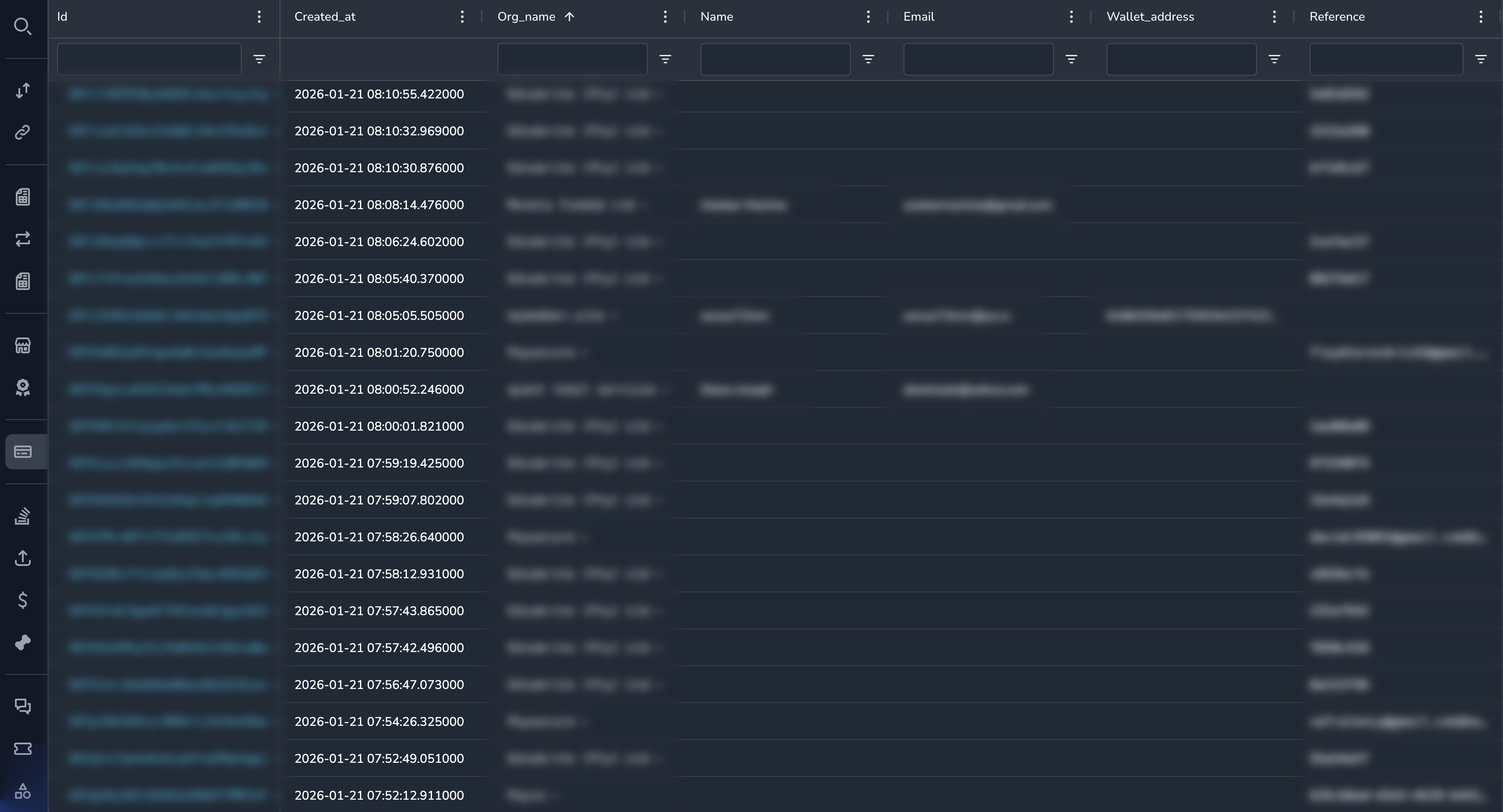
Understanding the Customers Grid
| Column | Description |
|---|---|
| Customer ID | Unique identifier for the customer relationship |
| Customer's email address | |
| Name | Customer's name (if provided) |
| Merchant | Which merchant this customer belongs to |
| Wallet | Associated wallet address |
| Status | Active or Suspended |
| Created | When the customer record was created |
Filtering Customers
By Email
- Click the Email column filter
- Enter the email address (partial matches work)
- Click Apply
By Merchant
- Click the Merchant column filter
- Select or search for a merchant
- Click Apply
By Status
- Click the Status column filter
- Select Active or Suspended
- Click Apply
By Wallet Address
- Click the Wallet column filter
- Enter the wallet address
- Click Apply
By Date Range
- Click the Created column filter
- Select a date range
- Click Apply
Using Global Search
If you have a customer identifier or email:
- Press
Ctrl/Cmd + Kto open global search - Enter the Customer ID (starts with
cust_) or email address - Click the result to go directly to the customer
Sorting Customers
Click any column header to sort:
- First click: Sort ascending (A-Z, oldest first)
- Second click: Sort descending (Z-A, newest first)
Viewing Customer Details
To view complete customer information:
- Click anywhere on the customer row
- The customer detail view opens
Finding a Customer's Payments
From the customer list:
- Find and note the customer's email or ID
- Go to the Payments section
- Filter by customer email
Or from the customer detail view, navigate directly to their payments.
Quick Tips
✅ Tip
- Use global search if you have the customer email
- Filter by "Suspended" to see restricted customers
- Filter by merchant to see customers for a specific business
Permissions
All roles can view customer records. See Customers Overview for edit permissions by role.
Related Topics
- Customer Profile - Understanding customer information
- Transaction History - Viewing customer payments
- Internal Notes - Adding support notes
Updated 7 months ago
Did this page help you?