
Internal Notes
Adding and viewing internal notes about customers
Internal Notes
Internal notes allow support staff to record information about customers. This guide explains how to add and view notes.
What Are Internal Notes?
Internal notes are comments attached to customer records that:
- Are visible only to back office staff
- Help track customer interactions
- Document issues and resolutions
- Provide context for future support
📘 Note
Internal notes are not visible to customers or merchants.
Accessing Notes
- Navigate to the customer detail view
- Click the Notes tab
- View all existing notes for this customer
Viewing Notes
Notes are displayed in reverse chronological order (newest first). Each note shows:
| Field | Description |
|---|---|
| Text | The note content |
| Author | Who wrote the note |
| Date/Time | When the note was added |
Adding a Note
To add a new note:
- Open the customer's Notes tab
- Click the Add Note button
- Enter your note text
- Click Post note
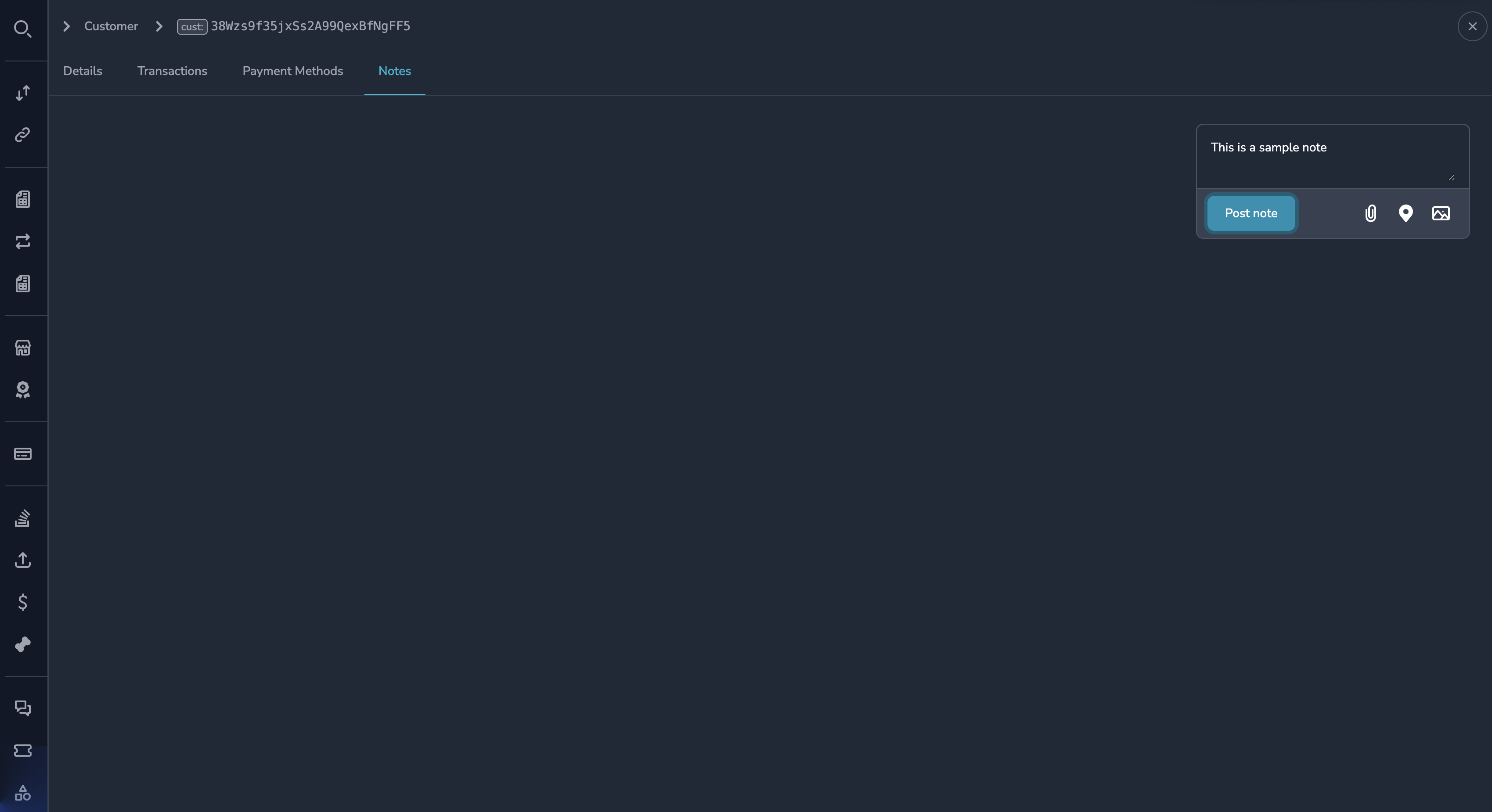
Note Content
When writing notes:
- Be clear and concise
- Include relevant details (ticket numbers, dates, etc.)
- Use professional language
- Avoid personal opinions or inappropriate content
Example Notes
Good note examples:
Customer contacted support regarding payment pay_abc123. Issue was
an underpayment - resolved using Payment Doctor on 2024-01-15.

Ticket #12345 - Customer requested information about their
subscription. Provided renewal date and pricing details.

Compliance flag cleared after documentation review. Approved by
compliance team - reference CR-2024-0042.
Notes Audit Trail
Notes are part of the audit trail:
- Each note is timestamped
- The author is recorded
- Notes cannot be edited or deleted after creation
Note Count
The Notes tab shows the count of existing notes for quick reference. This helps you know if there's history to review.
Permissions
| Role | View Notes | Add Notes |
|---|---|---|
| Super Admin | Yes | Yes |
| Admin | Yes | Yes |
| Payment Ops | Yes | Yes |
| Compliance Ops | Yes | Yes |
| CS Ops | Yes | Yes |
| Finance Ops | Yes | No |
| View Only | Yes | No |
Best Practices
When to Add Notes
Add notes when:
- Resolving a customer support issue
- Making changes to customer data
- Recording compliance decisions
- Documenting unusual situations
- Completing investigations
Note Quality
- Keep notes factual and objective
- Include enough detail for future reference
- Reference related tickets or case numbers
- Avoid abbreviations that others may not understand
Reviewing Notes Before Contact
Before interacting with a customer:
- Check if they have existing notes
- Review recent notes for context
- Use the information to provide better support
Sensitive Information
Avoid putting in notes:
- Full credit card numbers or sensitive credentials
- Information that shouldn't be in writing
- Personal opinions about customers
Common Scenarios
Support Interaction
After a support call:
Called customer regarding failed payment pay_xyz789. Customer confirmed
they sent from wrong wallet address. Advised them to use the registered
wallet for future payments. Issue resolved - no further action needed.
Compliance Action
After a compliance review:
Compliance review completed for customer transactions over past 30 days.
No issues found. Review triggered by automated rule. Reference: COMP-2024-123
Account Change
After modifying customer data:
Updated customer email from [email protected] to [email protected] at customer's
request. Verification completed via phone. Support ticket #45678.
Related Topics
- Customer Profile - Customer information
- Transaction History - Customer payments
- Customer Management - Managing accounts
Updated 7 months ago