
Reviewing Payments
How to approve, reject, and cancel payments requiring manual review
Reviewing Payments
Some payments are flagged for manual review before they can proceed. This guide explains how to review these payments and take appropriate action.
Why Payments Require Review
Payments may be flagged for manual review when:
- Compliance rules trigger — Wallet screening or risk rules flag the transaction
- Identity verification needed — KYC checks require manual review
- Amount thresholds exceeded — High-value payments may require approval
- Risk indicators detected — Unusual patterns or flagged addresses
- Business rules apply — Custom rules configured for the merchant
Finding Payments Requiring Review
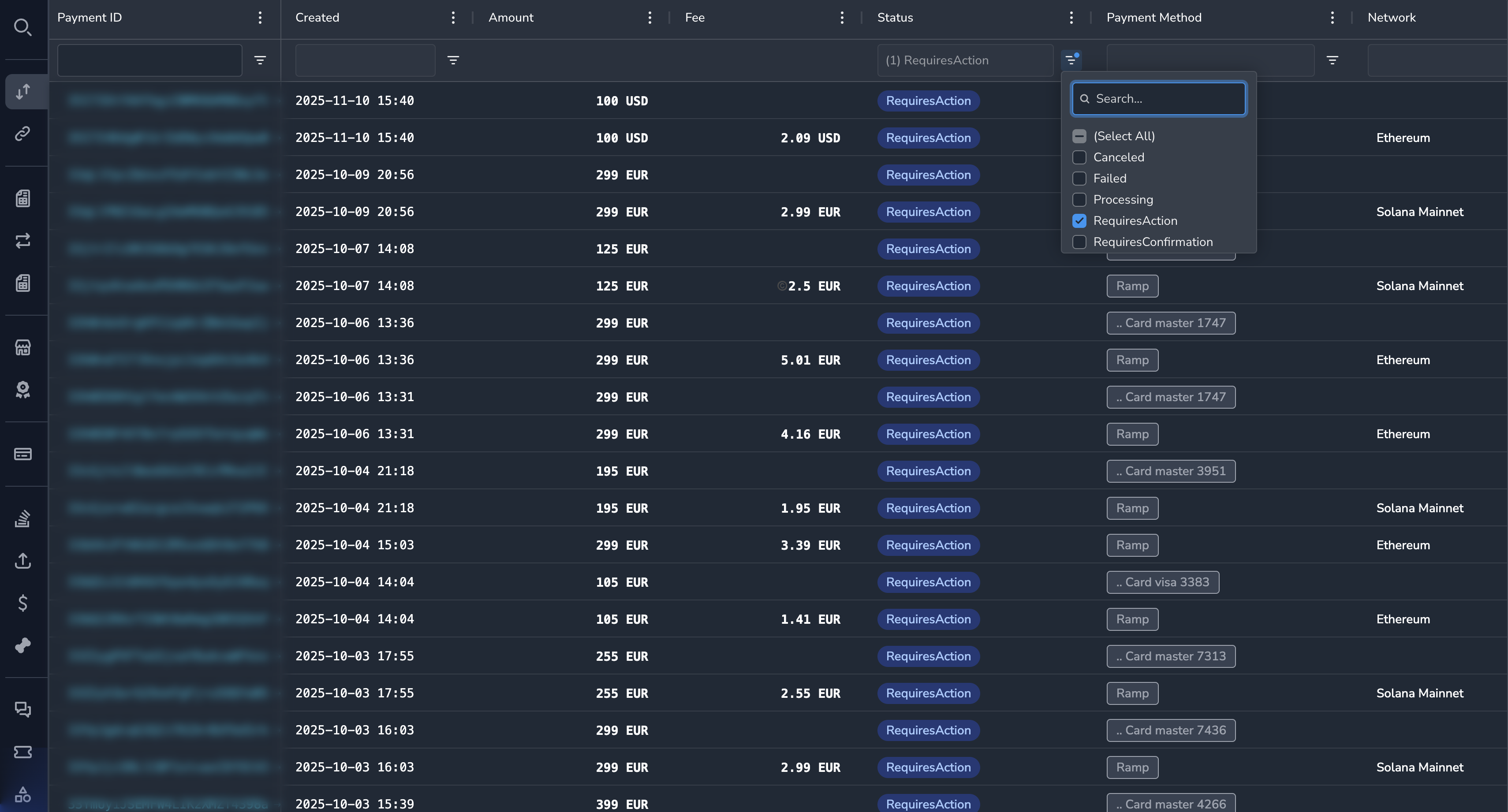
- Navigate to the Payments section
- Click the Status column filter
- Select Requires Action
- Click Apply
The list now shows only payments waiting for manual review.
Review Workflow
Step 1: Open Payment Details
Click on a payment with "Requires Action" status to open the detail view.
Step 2: Review Payment Information
Examine the payment details carefully:
- Verify the amount — Is it within expected ranges?
- Check the customer — Is the customer known and verified?
- Review the merchant — Is this merchant active and in good standing?
- Examine blockchain data — Is the source wallet address clean?
Step 3: Check the Flag Reason
Look for indicators of why this payment was flagged:
- Review any compliance notes or warnings displayed
- Check if rules triggered (visible in payment history)
- Look for risk scores or flags
Step 4: Make a Decision
Based on your review, choose one of the following actions:
| Action | When to Use | Result |
|---|---|---|
| Approve | Payment is legitimate and should proceed | Payment continues to processing |
| Reject | Payment should not proceed | Payment fails, customer is notified |
| Cancel | Payment should be abandoned | Payment is canceled |
Approving a Payment
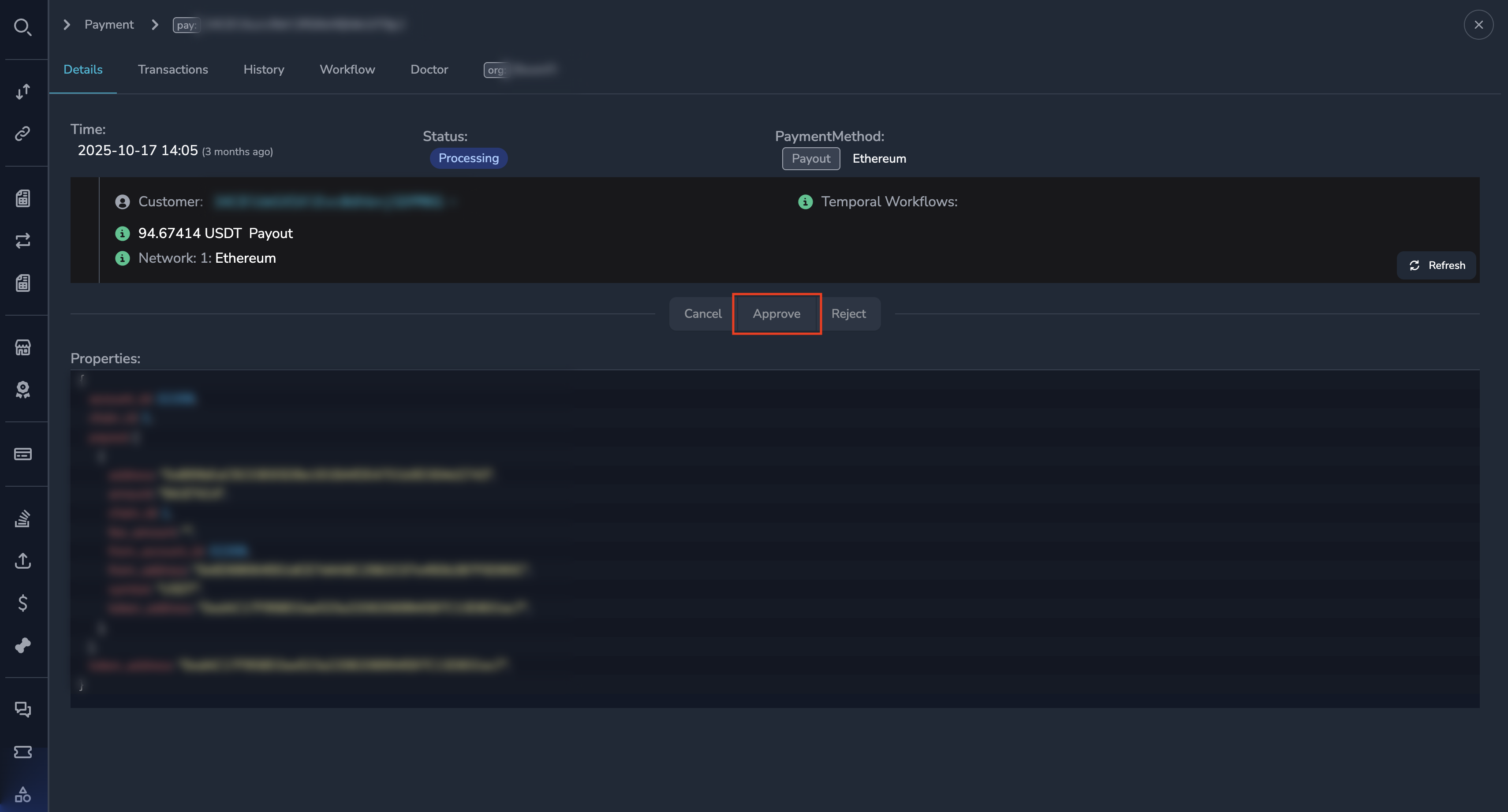
To approve a payment that passed your review:
- Open the payment detail view
- Click the Approve button
- Optionally enter a note explaining your decision
- Click Confirm
The payment status changes to Processing and settlement begins.
NoteApproving a payment is recorded in the audit log with your user ID and timestamp.
Rejecting a Payment
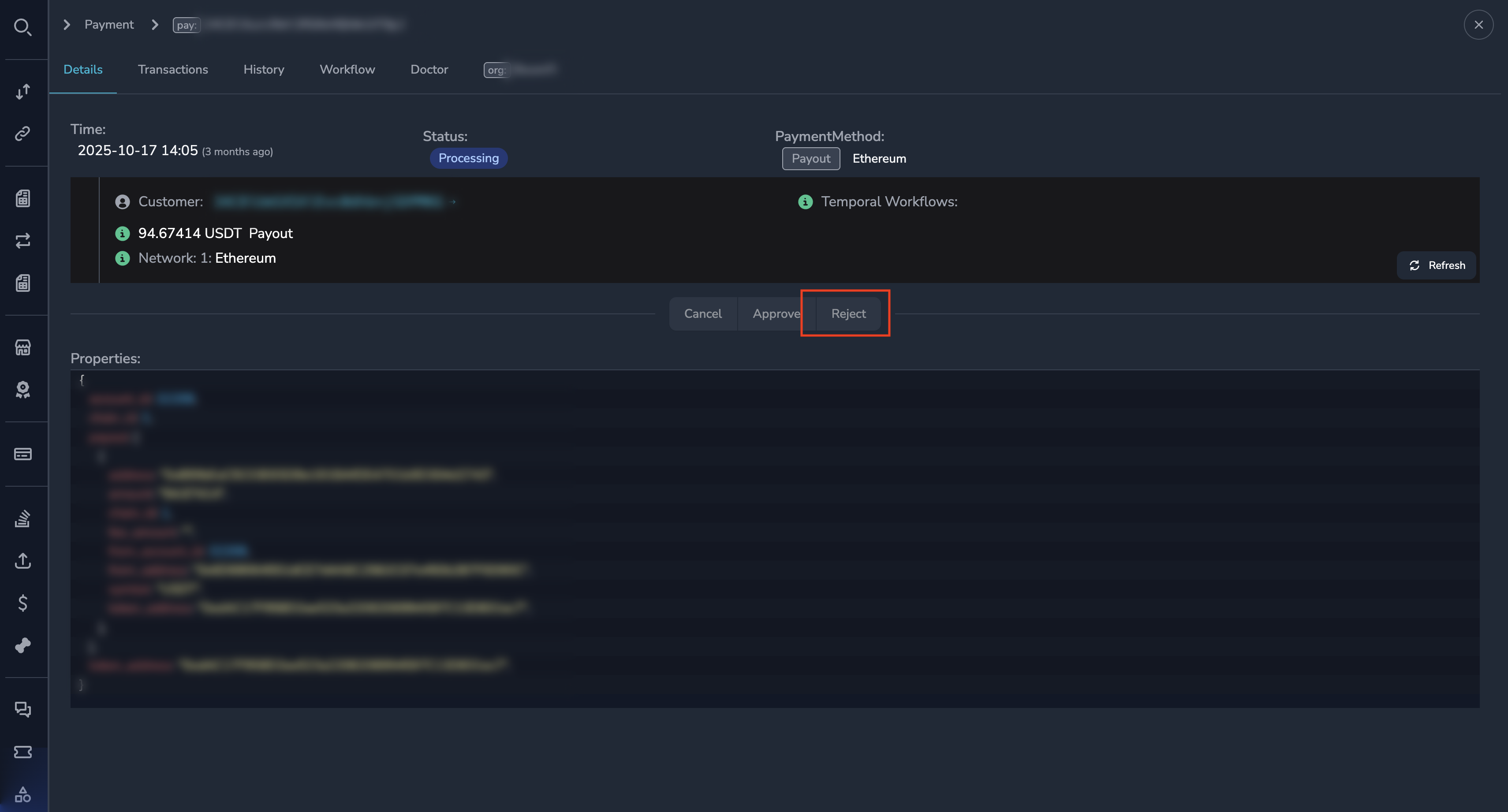
To reject a payment that should not proceed:
- Open the payment detail view
- Click the Reject button
- Enter a reason for the rejection (required)
- Click Confirm
The payment status changes to Failed.
WarningRejection is permanent. The customer will need to initiate a new payment if they wish to try again.
Canceling a Payment
To cancel a payment that is no longer needed:
- Open the payment detail view
- Click the Cancel button
- Enter a cancellation reason (optional)
- Click Confirm
The payment status changes to Canceled.
Refunding a Payment
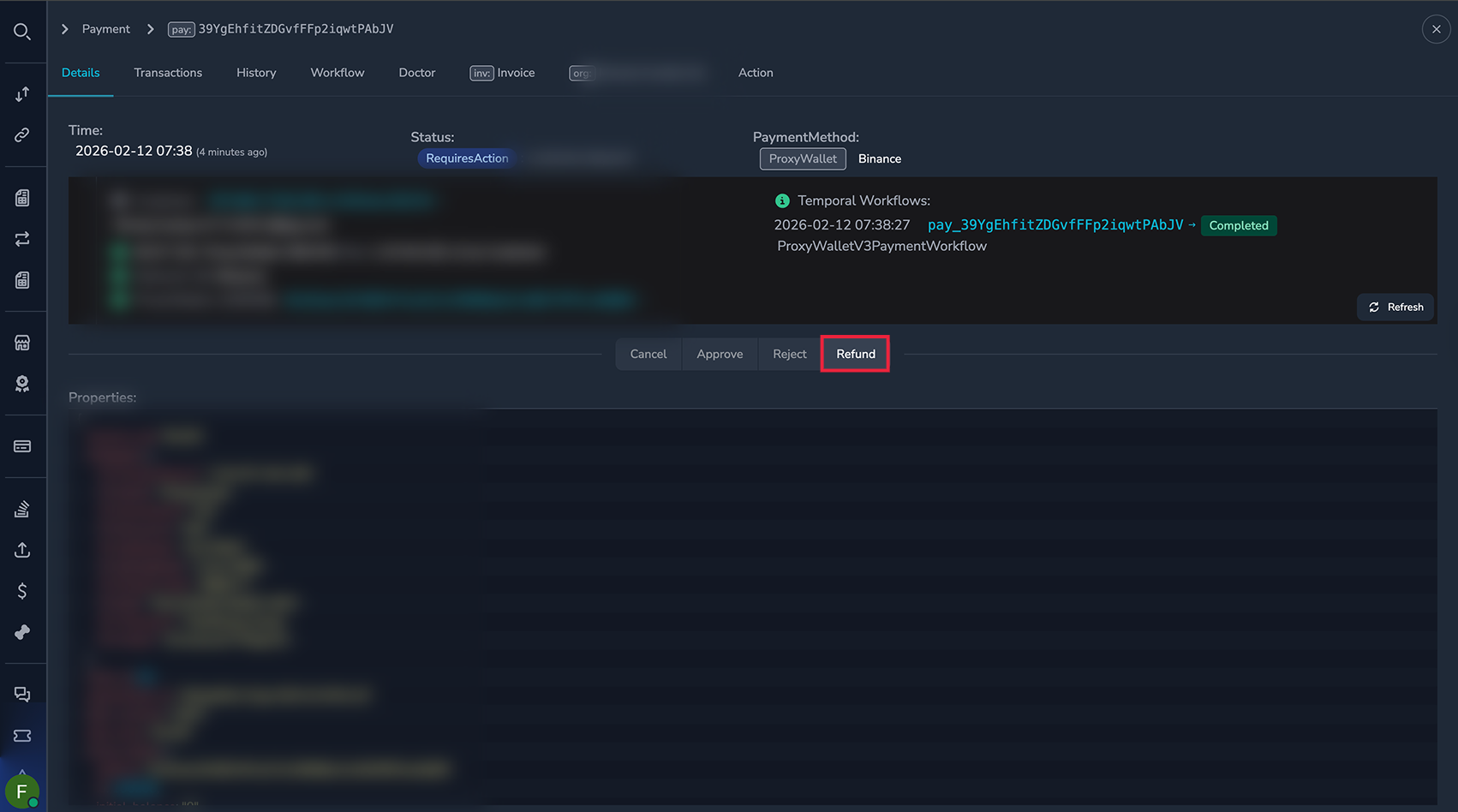
For payments that have already succeeded but need to be returned:
- Open the payment detail view
- Click the Refund button
- Enter the refund amount (full or partial)
- Enter a reason for the refund
- Click Confirm
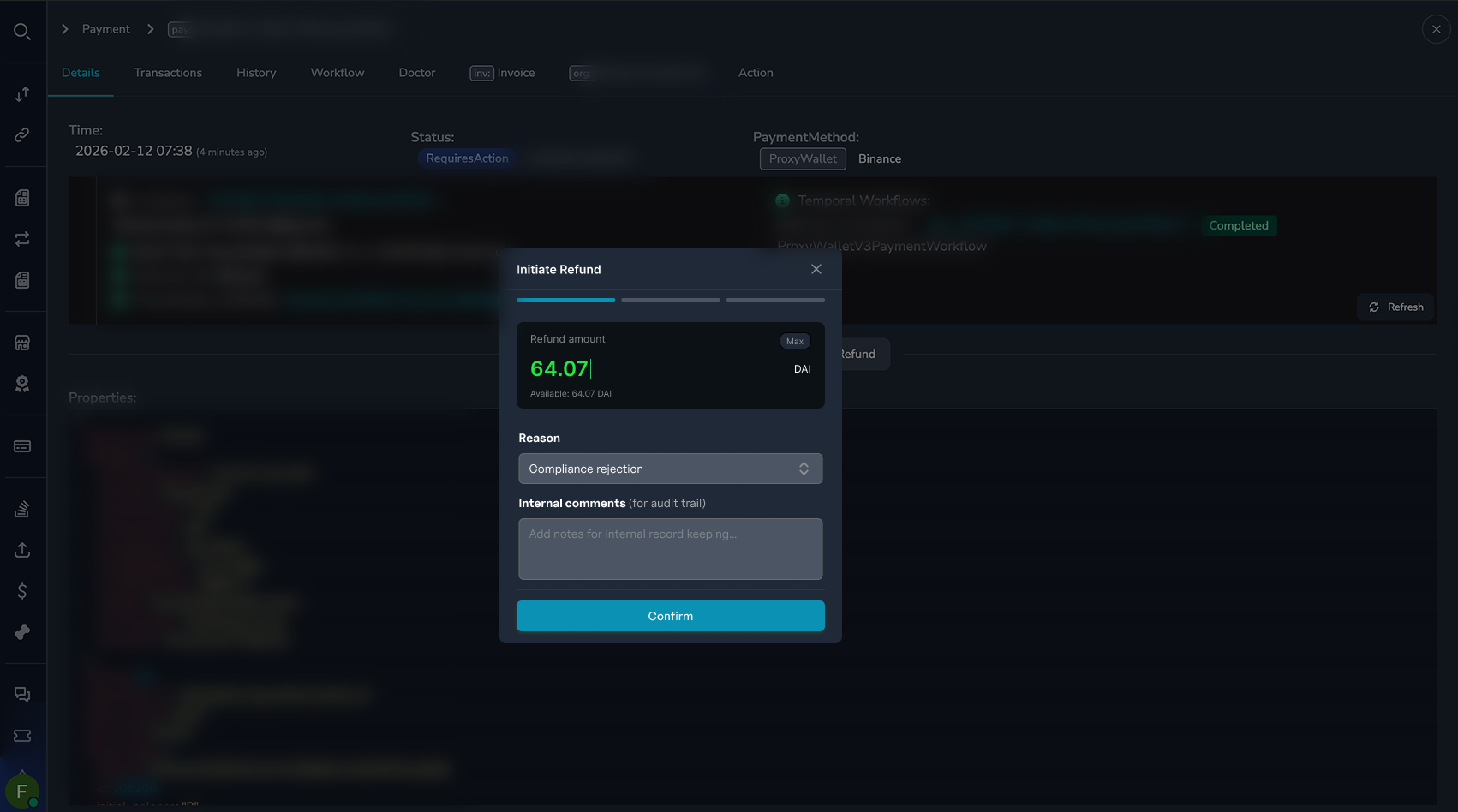
NoteRefunds are processed back to the customer's original payment method when possible. Refund processing time varies by network.
Best Practices
Before Approving
- Verify the customer is legitimate
- Check that the amount matches expectations
- Review any compliance flags carefully
- Document your reasoning in the approval notes
Before Rejecting
- Ensure you have valid grounds for rejection
- Consider if the issue can be resolved another way
- Document the specific reason for rejection
- Consider customer impact
Audit Trail
All review actions are logged with:
- Your user ID
- Timestamp
- Action taken
- Notes/reasons provided
This audit trail is permanent and visible in the payment history.
Permissions
Not all users can review payments. The following roles have review permissions:
| Role | Can Review |
|---|---|
| Super Admin | Yes |
| Admin | Yes |
| Payment Ops | Yes |
| Compliance Ops | Yes |
| CS Ops | No |
| Finance Ops | No |
| View Only | No |
Related Topics
- Payment Statuses — Understanding what each status means
- Payment History — Viewing the audit trail
- Payment Doctor — Resolving technical payment issues
Updated 6 months ago