
Payment Statuses
Understanding the meaning of each payment status
Payment Statuses
Every payment has a status that indicates its current state in the payment lifecycle. Understanding these statuses helps you quickly assess payments and take appropriate action.
Status Overview
| Status | Description | Action Required? |
|---|---|---|
| Requires Payment Method | Payment created, awaiting customer payment | No |
| Requires Confirmation | Payment received, awaiting blockchain confirmation | No |
| Requires Action | Manual intervention needed | Yes |
| Processing | Payment being processed and settled | No |
| Succeeded | Payment completed successfully | No |
| Canceled | Payment was canceled | No |
| Failed | Payment failed to complete | Review needed |
Detailed Status Descriptions
Requires Payment Method
The payment has been created and is waiting for the customer to send funds.
What's happening:
- A payment link or checkout session has been initiated
- The customer has not yet sent funds to the payment address
- The payment will timeout if no funds are received within the payment window
What you can do:
- Wait for the customer to complete payment
- Contact the customer if the payment is taking longer than expected
Requires Confirmation
Funds have been detected on the blockchain but are awaiting sufficient confirmations.
What's happening:
- The customer has sent funds
- The blockchain transaction is being confirmed
- The system is waiting for the required number of block confirmations
What you can do:
- Wait for confirmations to complete (this is automatic)
- Monitor the blockchain transaction if needed
NoteDifferent blockchains require different numbers of confirmations. This typically takes a few minutes but can vary based on network congestion.
Requires Action
The payment has been flagged and requires manual intervention before it can proceed.
What's happening:
- The payment may have been flagged by compliance rules
- There may be a risk indicator that needs review
- A business rule triggered manual review
What you can do:
- Review the payment details
- Check the reason for the flag
- Approve, reject, or cancel the payment
See Reviewing Payments for detailed instructions.
Processing
The payment has been approved and is being processed.
What's happening:
- Funds have been confirmed
- The system is executing settlement
- Funds are being transferred to the merchant
What you can do:
- Wait for processing to complete
- Processing is typically automatic
Succeeded
The payment has completed successfully.
What's happening:
- Funds have been received from the customer
- Settlement has been processed
- The merchant has received their funds
What you can do:
- No action needed
- View the payment for record-keeping
- Access receipts and transaction details
Canceled
The payment was canceled before completion.
What's happening:
- The payment was manually canceled by an operator
- Or the payment timed out without receiving funds
- Or the customer canceled the payment
What you can do:
- Review the cancellation reason in the history
- No further action possible on this payment
Failed
The payment could not be completed due to an error.
What's happening:
- An error occurred during processing
- This could be a technical issue or a business rule rejection
What you can do:
- Review the failure reason in the payment history
- Contact technical support if the failure is unexpected
- Advise the customer if they need to retry
Status Colors
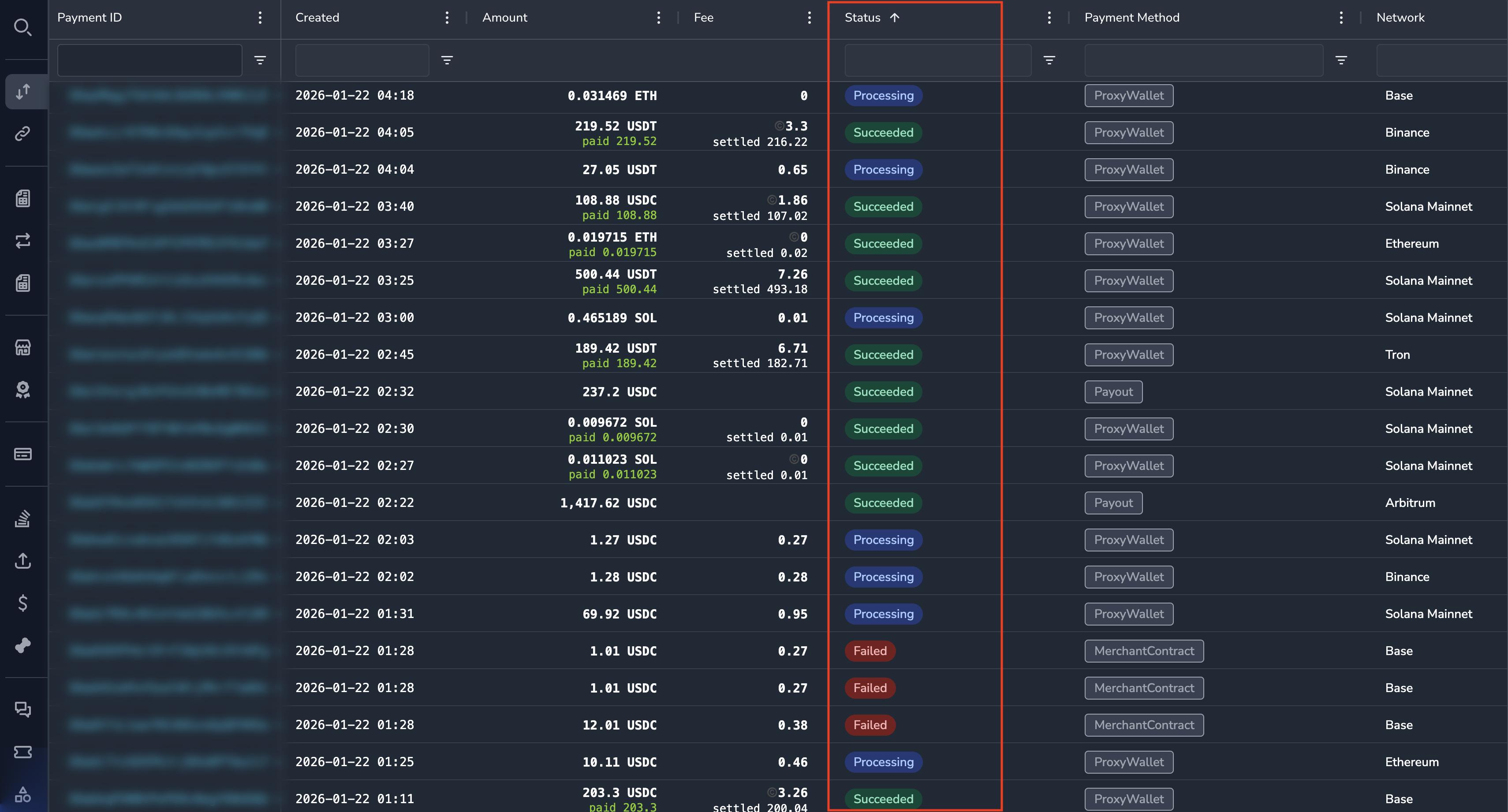
Statuses are color-coded in the interface for quick identification:
| Status | Color |
|---|---|
| Requires Payment Method | Gray |
| Requires Confirmation | Blue |
| Requires Action | Orange/Yellow |
| Processing | Blue |
| Succeeded | Green |
| Canceled | Gray |
| Failed | Red |
Status Transitions
Payments typically flow through statuses in this order:
Requires Payment Method
        ↓
Requires Confirmation
        ↓
   Processing ──→ Requires Action (if flagged)
        ↓                  ↓
   Succeeded          Approved → Processing → Succeeded
        or            Rejected → Failed
   Failed             Canceled → Canceled
        or
   Canceled
Filtering by Status
To view payments with a specific status:
- Go to the Payments list
- Click the Status column filter
- Select the status(es) you want to view
- Click Apply
Related Topics
- Viewing Payments — How to filter and browse payments
- Reviewing Payments — How to handle payments requiring action
- Payment History — How to view status change history
Updated 7 months ago