
Viewing Payments
How to find and filter payments in the Support App
Viewing Payments
This guide explains how to navigate, filter, and browse payments in the Support App.
Accessing the Payments List
- Click Payments in the sidebar under the Pay section
- The payments list loads with the most recent payments displayed first
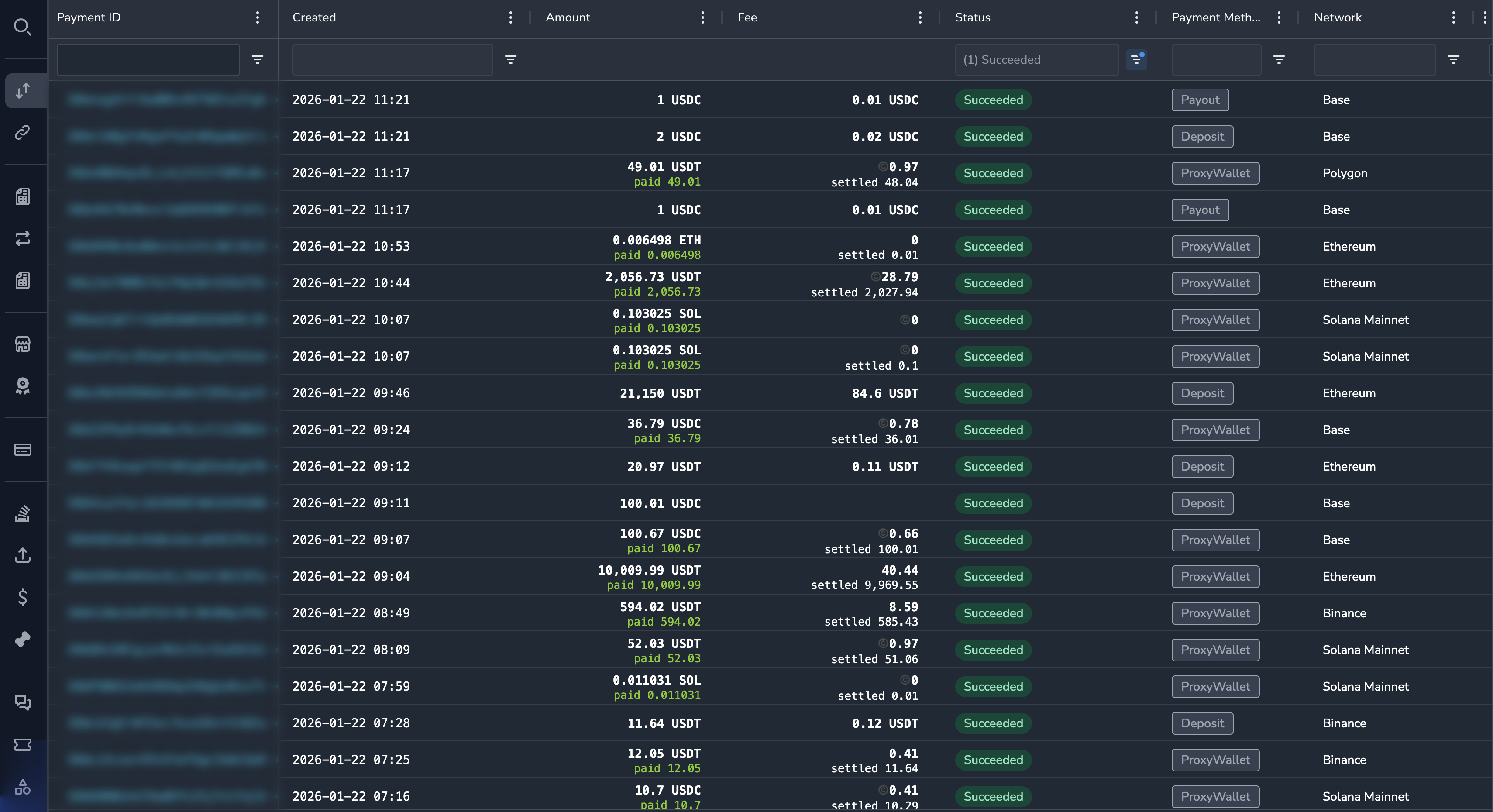
Understanding the Payments Grid
The payments grid displays key information about each payment:
| Column | Description |
|---|---|
| Payment ID | Unique identifier for the payment |
| Status | Current payment status (color-coded) |
| Amount | Requested payment amount |
| Paid | Actual amount received from customer |
| Currency | Payment currency |
| Customer | Customer email or identifier |
| Merchant | Merchant name |
| Created | When the payment was created |
| Updated | When the payment was last modified |
Filtering Payments
Use filters to narrow down the payments list to find specific records.
Filter by Status
- Click the Status column header filter icon
- Select one or more statuses from the list:
- Requires Payment Method
- Requires Confirmation
- Requires Action
- Processing
- Succeeded
- Canceled
- Failed
- Click Apply
Filter by Date Range
- Click the Created or Updated column header filter icon
- Select a date range:
- Today
- Last 7 days
- Last 30 days
- Custom range
- Click Apply
Filter by Merchant
- Click the Merchant column header filter icon
- Type the merchant name or select from the list
- Click Apply
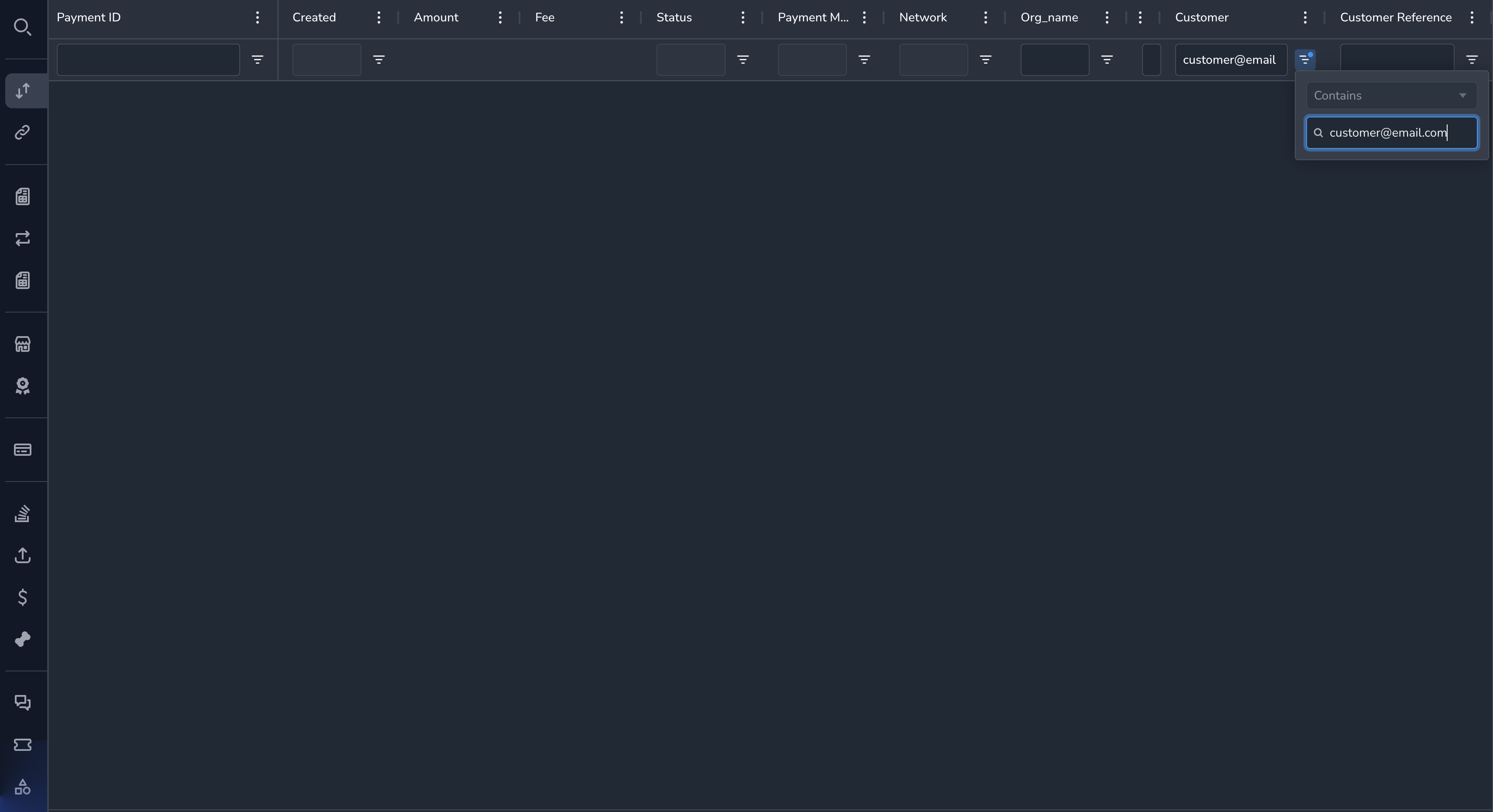
Filter by Customer
- Click the Customer column header filter icon
- Enter the customer email address
- Click Apply
Combining Multiple Filters
You can apply multiple filters simultaneously:
- Apply your first filter (e.g., Status = "Processing")
- Apply additional filters (e.g., Merchant = "Acme Corp")
- The grid updates to show only matching records
Active filters are indicated in the column headers. To clear a filter, click the filter icon and select Clear.
Sorting Payments
Click any column header to sort by that column:
- First click: Sort ascending (A-Z, oldest first, smallest first)
- Second click: Sort descending (Z-A, newest first, largest first)
- Third click: Clear sort
An arrow icon indicates the current sort direction.
Viewing Payment Details
To view the complete details of a payment:
- Click anywhere on the payment row
- The payment detail panel opens
See Payment Details for information about the detail view.
Exporting Data
To export the current view:
- Apply any filters you want
- Click the Export button (if available)
- Choose the export format (CSV or Excel)
- The file downloads to your computer
NoteExports include only the data visible based on your current filters and permissions.
Pagination
For large result sets:
- Use the Previous and Next buttons at the bottom of the grid
- Select the number of rows per page from the dropdown (10, 25, 50, 100)
- The total number of records is displayed
Refreshing Data
The payments list shows data as of when you loaded the page. To see the latest:
- Navigate away from the Payments section
- Return to Payments
- The list refreshes with current data
Quick Tips
Tip
- Use the global search (
Ctrl/Cmd + K) if you know the Payment ID- Filter by "Requires Action" to see payments needing manual intervention
- Sort by "Updated" descending to see recently changed payments
Updated 7 months ago