
Payment Details
Understanding the payment detail view
Payment Details
The payment detail view provides comprehensive information about a single payment, including transaction details, customer information, and related records.
Accessing Payment Details
- Navigate to the Payments list
- Click on any payment row
- The payment detail panel opens
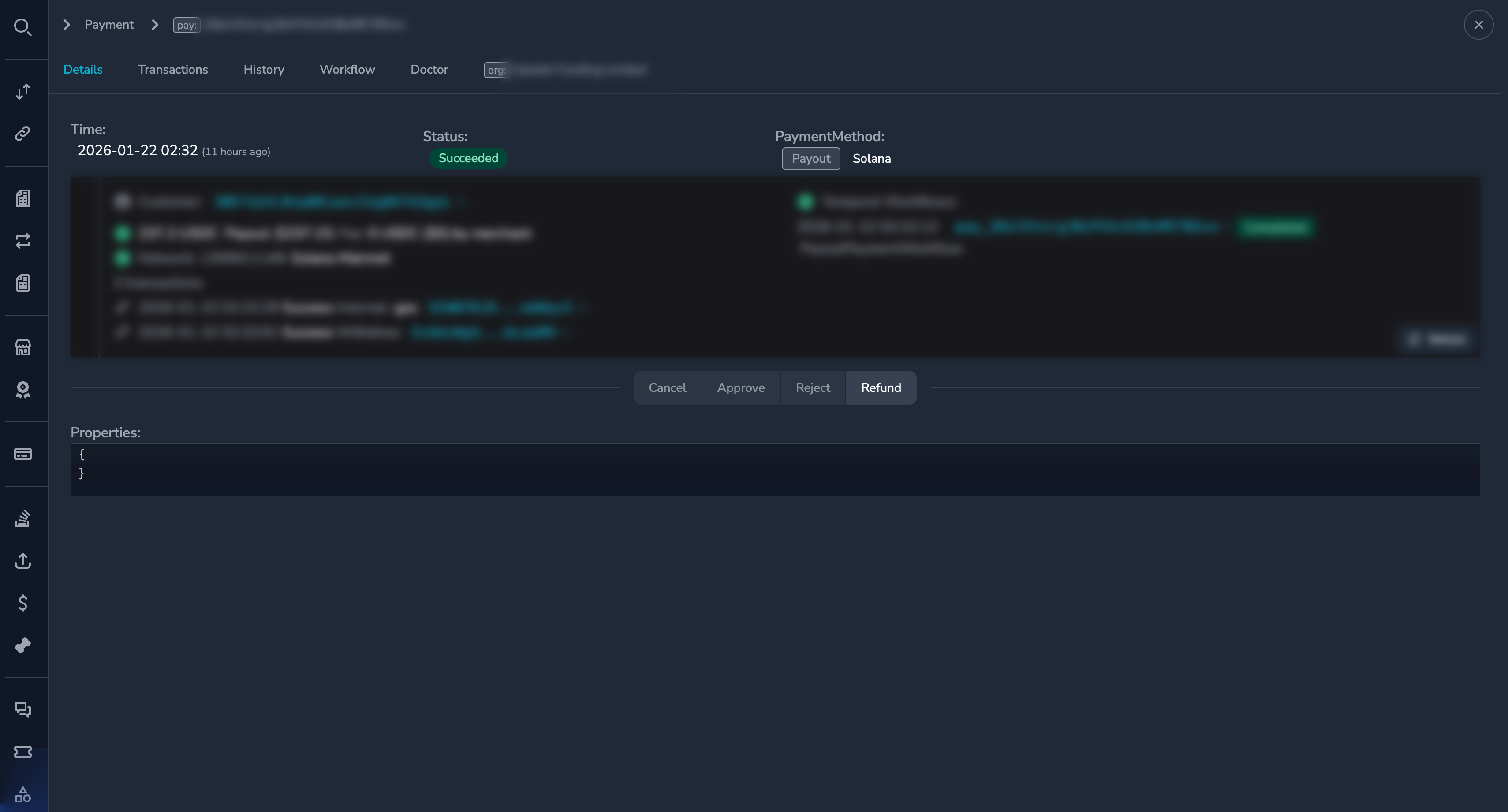
Detail View Sections
Payment Information
The top section displays core payment information:
| Field | Description |
|---|---|
| Payment ID | Unique identifier (click to copy) |
| Status | Current payment status |
| Created | When the payment was created |
| Updated | When the payment was last modified |
Amount Details
| Field | Description |
|---|---|
| Requested Amount | The amount the merchant requested |
| Paid Amount | The actual amount received from the customer |
| Fee | Transaction fees deducted |
| Net Amount | Amount after fees |
| Currency | The payment currency |
NoteIf the paid amount differs from the requested amount, this may indicate an underpayment or overpayment situation. See Payment Doctor for resolution options.
Merchant Information
| Field | Description |
|---|---|
| Merchant Name | Name of the receiving merchant |
| Organization ID | Merchant's unique identifier (click to view merchant) |
Customer Information
| Field | Description |
|---|---|
| Customer Email | Customer's email address |
| Customer Name | Customer's name (if provided) |
| Customer ID | Unique customer identifier (click to view customer) |
| Wallet Address | Customer's sending wallet address |
Blockchain Details
| Field | Description |
|---|---|
| Network | The blockchain network (e.g., Ethereum, Polygon) |
| Token | The cryptocurrency token used |
| Transaction Hash | Blockchain transaction ID (click to view on explorer) |
| Payment Address | The address where funds were received |
Settlement Information
| Field | Description |
|---|---|
| Settlement Status | Status of the settlement to merchant |
| Settlement Address | Merchant's receiving wallet |
| Settlement Amount | Amount settled to merchant |
Viewing Linked Records
Crypto Transactions
To view the blockchain transactions associated with this payment:
- Scroll to the Crypto Transactions section
- Each transaction shows:
- Transaction hash
- Amount
- Confirmations
- Status
Click a transaction hash to open it in the blockchain explorer.
Related Payments
If this payment is part of a subscription or recurring billing:
- Scroll to the Related Payments section
- View linked invoices or subscription payments
Available Actions
Depending on the payment status and your permissions, you may see action buttons:
| Action | When Available | Description |
|---|---|---|
| Approve | Requires Action status | Approve the payment to proceed |
| Reject | Requires Action status | Reject and fail the payment |
| Cancel | Before completion | Cancel the payment |
| Refund | After Succeeded | Initiate a refund |
| Doctor | Various issues | Open the Payment Doctor |
See the following guides for action details:
- Reviewing Payments — Approve/Reject/Cancel
- Payment Doctor — Resolve payment issues
Viewing Payment History
Click the History tab to see the complete event timeline for this payment. See Payment History for details.
Copying Information
To copy values from the detail view:
- Click on any ID field (Payment ID, Transaction Hash, etc.)
- The value is copied to your clipboard
- A confirmation message appears
Navigating from Details
From the payment detail view, you can navigate to related records:
- Click the Merchant name or ID to view merchant details
- Click the Customer email or ID to view customer details
- Click a Transaction Hash to view on blockchain explorer
Closing the Detail View
To return to the payments list:
- Click the X button in the corner of the detail panel
- Or click outside the detail panel
- Or press the Esc key
Updated 7 months ago