
Merchant Profile
Understanding and updating merchant profile information
Merchant Profile
The merchant profile contains essential business information and configuration settings. This guide explains the profile fields and how to update them.
Accessing Merchant Profile
- Navigate to the Merchants list
- Click on a merchant to open the detail view
- The Details tab displays the merchant's information
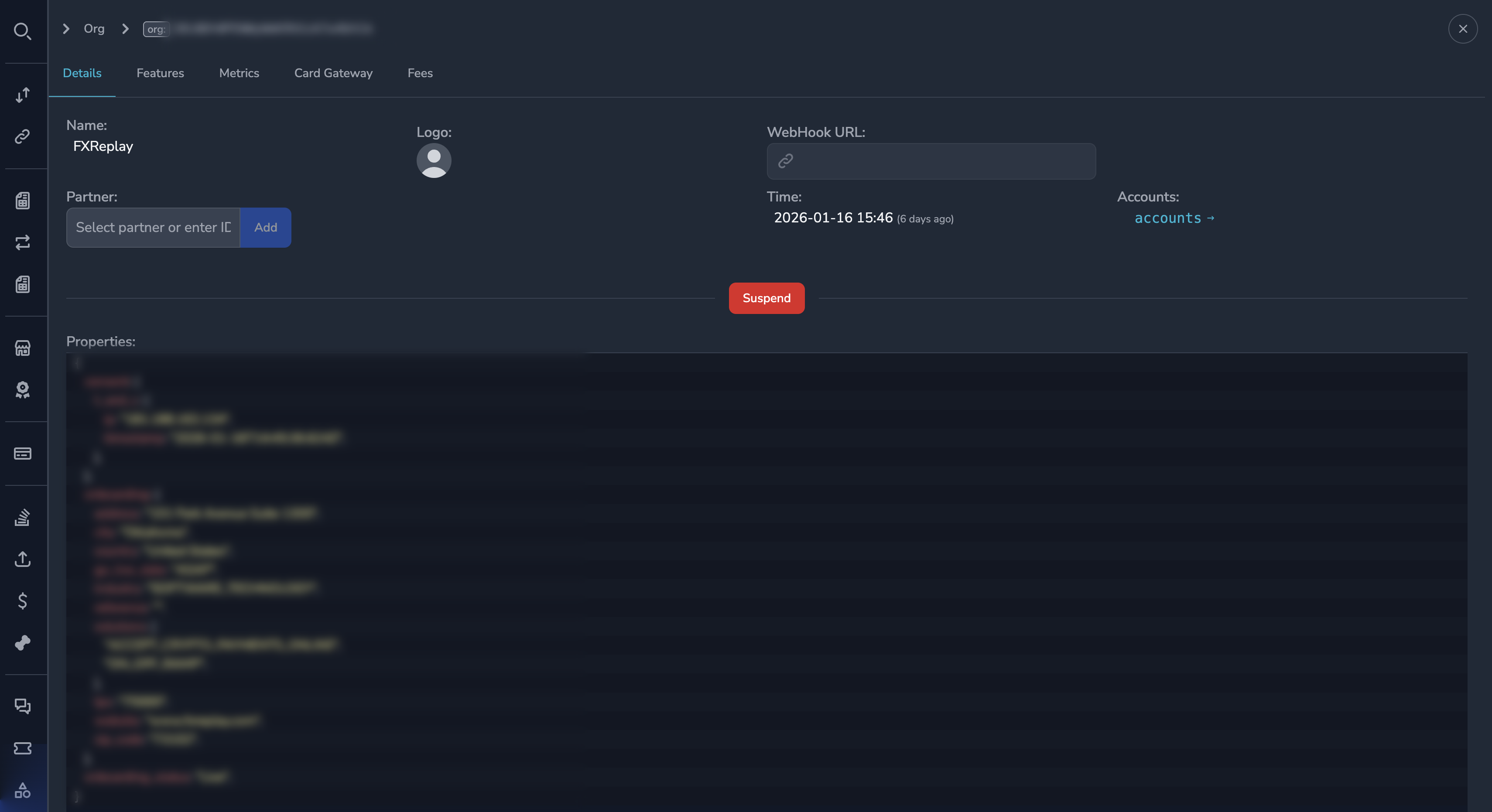
Profile Information
Business Details
| Field | Description | Editable |
|---|---|---|
| Organization ID | Unique identifier | No |
| Name | Business display name | Yes |
| Industry | Business category | Yes |
| Website | Company website URL | Yes |
| Logo URL | Company logo image URL | Yes |
Contact Information
| Field | Description | Editable |
|---|---|---|
| Owner Name | Primary contact name | Yes |
| Owner Email | Primary contact email | No |
| Address | Business address | Yes |
| City | City | Yes |
| Country | Country | Yes |
| ZIP/Postal Code | Postal code | Yes |
Technical Configuration
| Field | Description | Editable |
|---|---|---|
| Webhook URL | URL for payment notifications | Yes |
| Webhook Secret | Secret for webhook verification | View only |
Status Information
| Field | Description | Editable |
|---|---|---|
| Status | Active or Suspended | Via actions |
| Created Date | When onboarded | No |
| Last Updated | Last modification time | No |
Updating Merchant Profile
To update profile information:
- Open the merchant detail view
- Click the Edit button
- Modify the desired fields
- Click Save
NoteChanges are logged in the audit trail with your user ID and timestamp.
Webhook Configuration
Merchants receive payment notifications via webhooks. To update:
- Open the merchant profile
- Locate the Webhook URL field
- Enter the new webhook endpoint URL
- Save the changes
WarningChanging the webhook URL affects where payment notifications are sent. Verify the new URL is correct before saving.
Suspending a Merchant
To suspend a merchant account:
- Open the merchant detail view
- Click the Suspend button
- Enter a reason for suspension
- Click Confirm
Effects of suspension:
- All payment links become inactive
- New payments cannot be initiated
- Existing transactions continue processing
Unsuspending a Merchant
To reactivate a suspended merchant:
- Open the suspended merchant's detail view
- Click the Unsuspend button
- Enter a reason for unsuspension
- Click Confirm
The merchant returns to Active status.
Audit Trail
All profile changes are recorded:
- Who made the change
- When the change was made
- What was changed
- Suspension/unsuspension reasons
View the audit trail in the merchant's History tab.
Permissions
| Role | View Profile | Edit Profile | Suspend/Unsuspend |
|---|---|---|---|
| Super Admin | Yes | Yes | Yes |
| Admin | Yes | Yes | Yes |
| Payment Ops | Yes | No | No |
| Compliance Ops | Yes | No | Yes |
| CS Ops | Yes | Yes | No |
| Finance Ops | Yes | No | No |
| View Only | Yes | No | No |
Best Practices
Before Making Changes
- Verify you have the correct merchant
- Understand the impact of your changes
- Document the reason for changes
For Webhook Updates
- Verify the new URL is accessible
- Coordinate with the merchant's technical team
- Monitor for webhook delivery issues after the change
For Suspensions
- Document the reason clearly
- Notify relevant stakeholders
- Follow up on resolution path
Related Topics
- Viewing Merchants — Finding merchant accounts
- Feature Flags — Managing enabled features
- Fee Configuration — Setting transaction fees
Updated 7 months ago
Did this page help you?