
Feature Flags
Enabling and disabling features for merchants
Feature Flags
Feature flags control which capabilities are available to each merchant. This guide explains how to view and manage feature flags.
What Are Feature Flags?
Feature flags are toggles that enable or disable specific functionality for a merchant. They allow:
- Gradual rollout of new features
- Customized merchant experiences
- Restriction of features based on agreement or compliance
Accessing Feature Flags
- Navigate to the merchant detail view
- Click the Features tab
- View all available features and their current status
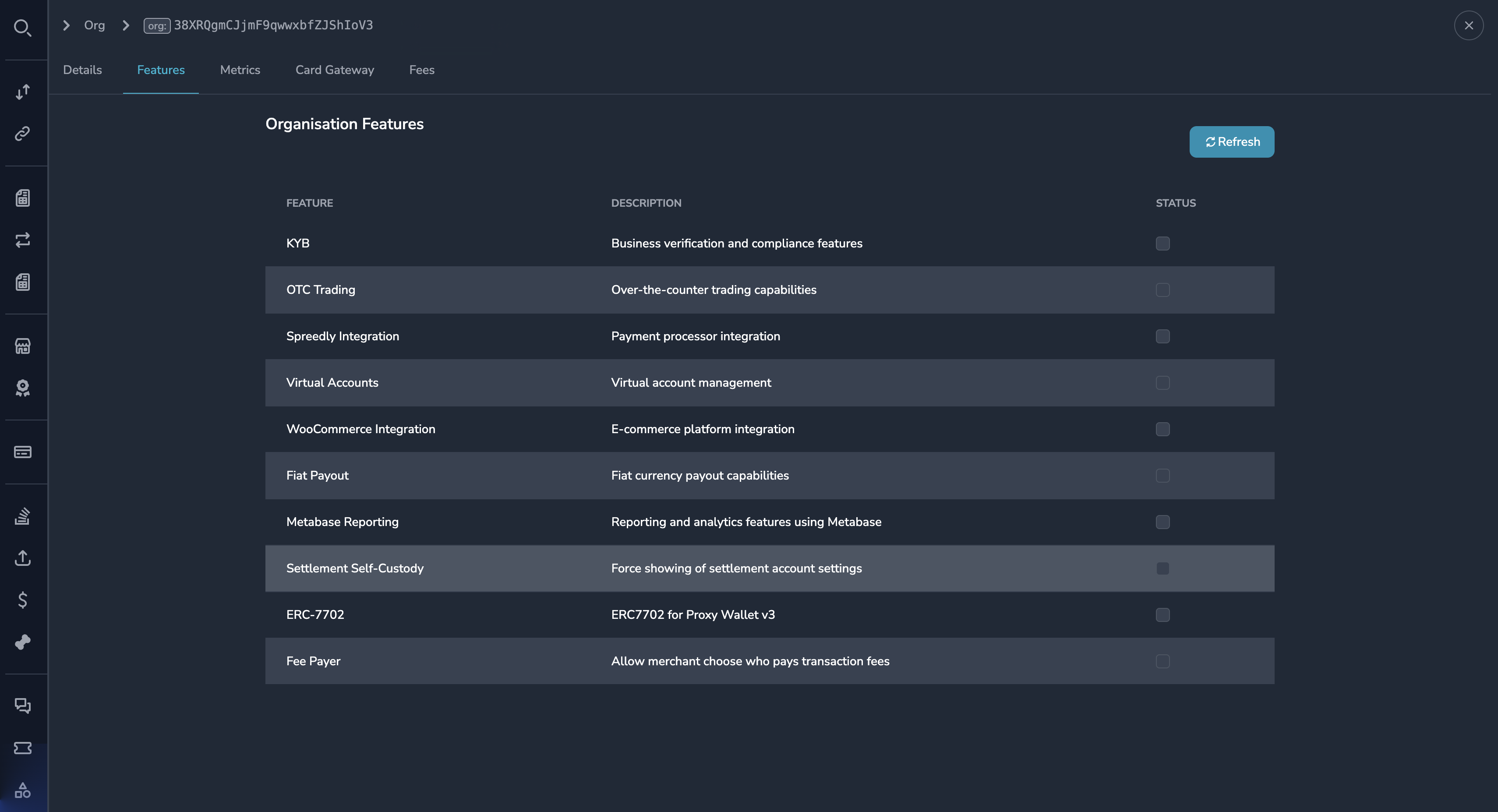
Understanding Features
Each feature flag shows:
| Field | Description |
|---|---|
| Feature Name | Name of the capability |
| Description | What the feature does |
| Status | Enabled or Disabled |
Common Feature Flags
| Feature | Description |
|---|---|
| Crypto Payments | Accept cryptocurrency payments |
| Card Payments | Accept card payments |
| Subscriptions | Create recurring billing |
| Refunds | Process refunds |
| OTC Trading | Access trading/conversion features |
| Custom Rules | Configure custom business rules |
| Webhooks | Receive webhook notifications |
| API Access | Use API for integrations |
NoteAvailable features may vary based on your organization's configuration. Contact your administrator for a complete list.
Enabling a Feature
To enable a feature for a merchant:
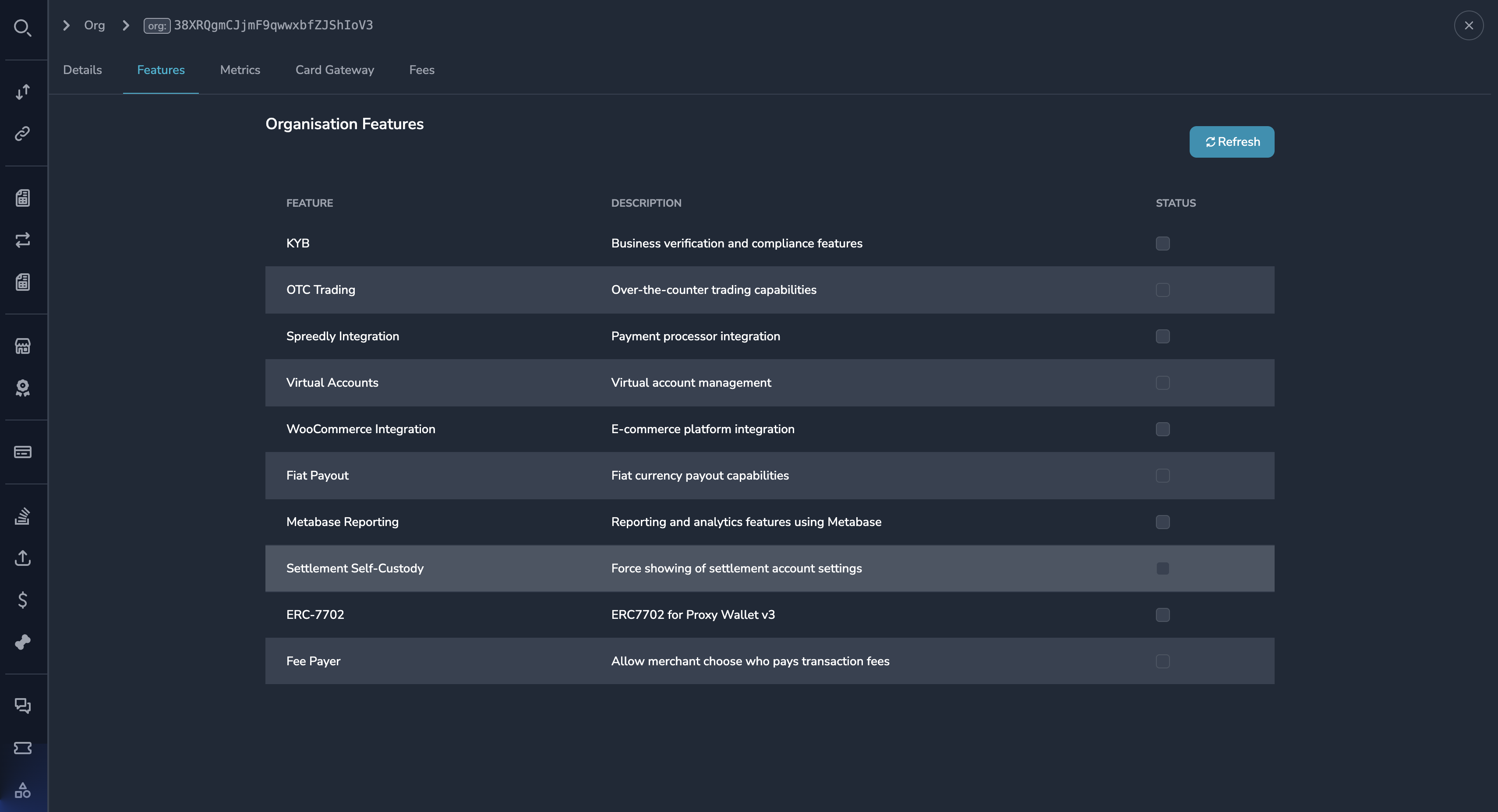
- Open the merchant's Features tab
- Find the feature you want to enable
- Click the toggle to switch it On
- Confirm the change when prompted
Disabling a Feature
To disable a feature:
- Open the merchant's Features tab
- Find the feature you want to disable
- Click the toggle to switch it Off
- Confirm the change when prompted
WarningDisabling a feature may immediately affect the merchant's operations. Ensure you understand the impact before disabling.
Impact of Feature Changes
When Enabling
- The feature becomes available immediately
- The merchant can start using the capability
- May require merchant configuration before use
When Disabling
- The feature becomes unavailable immediately
- In-progress operations may continue
- New operations using the feature will fail
Audit Trail
All feature changes are logged:
- User who made the change
- Timestamp of the change
- Feature name
- Previous and new status
View the audit trail in the merchant's History tab.
Permissions
| Role | View Features | Edit Features |
|---|---|---|
| Super Admin | Yes | Yes |
| Admin | Yes | Yes |
| Payment Ops | Yes | No |
| Compliance Ops | Yes | No |
| CS Ops | Yes | Yes |
| Finance Ops | Yes | No |
| View Only | Yes | No |
Best Practices
Before Enabling
- Verify the merchant is eligible for the feature
- Ensure any prerequisites are met
- Communicate with the merchant about new capabilities
Before Disabling
- Understand why the feature is being disabled
- Consider the impact on the merchant's business
- Notify the merchant if appropriate
- Document the reason for the change
For Compliance Features
Some features may be required for regulatory compliance. Before disabling:
- Check with compliance team
- Ensure alternative controls are in place
- Document the decision
Common Scenarios
New Merchant Onboarding
When onboarding a new merchant:
- Review the merchant's agreement for included features
- Enable appropriate features based on their plan
- Verify features are working correctly
Feature Upgrade Request
When a merchant requests additional features:
- Verify the request is approved
- Enable the requested feature(s)
- Confirm with the merchant
Compliance Restriction
When a feature must be restricted:
- Document the compliance reason
- Disable the feature
- Notify relevant stakeholders
- Log the action in the audit trail
Related Topics
- Merchant Profile — Merchant information
- Fee Configuration — Setting transaction fees
- Accounts & Metrics — Viewing merchant accounts
Updated 7 months ago