
Fee Configuration
Setting and managing merchant transaction fees
Fee Configuration
Each merchant has configurable fees for different transaction types. This guide explains how to view and modify fee structures.
Understanding Fees
Fees are charged as a percentage of the transaction amount. Different fee types apply to different operations:
| Fee Type | Applies To |
|---|---|
| Payment Fee | Standard payment transactions |
| Off-ramp Fee | Converting crypto to fiat |
| Swap Fee | Currency exchange transactions |
| Refund Fee | Processing refunds (fixed USD amount) |
| OTC Transaction Fee | Over-the-counter trading |
| OTC FX Fee | Foreign exchange in OTC trades |
| Payin Fee | Receiving funds (deposits) |
| Payout Fee | Sending funds (withdrawals/settlements) |
Accessing Fee Configuration
- Navigate to the merchant detail view
- Click the Fees tab
- View all configured fees for the merchant
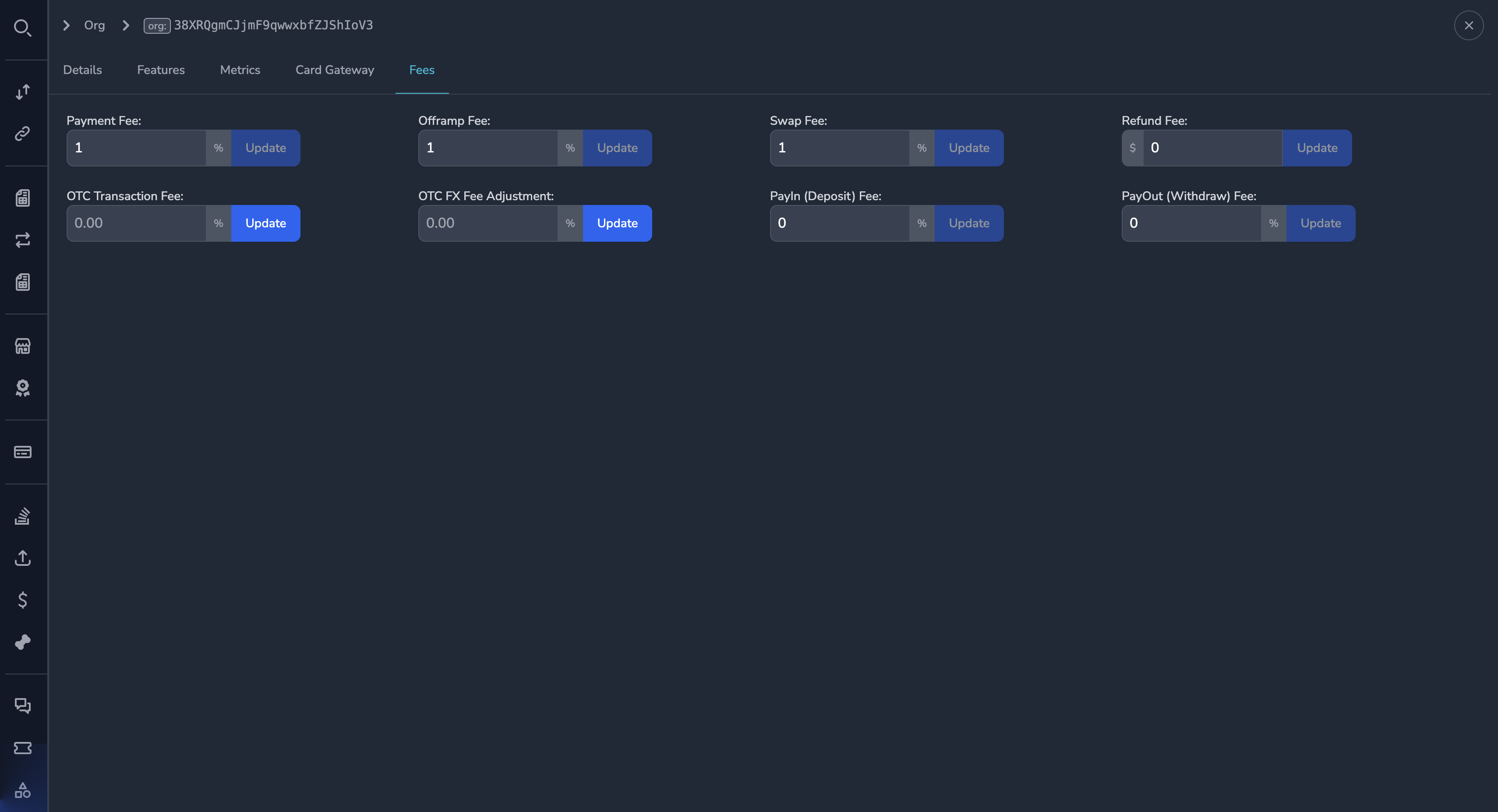
Fee Display
Each fee shows:
| Field | Description |
|---|---|
| Fee Type | What the fee applies to |
| Percentage | Fee as a percentage (e.g., 1.5%) |
| Amount | For fixed fees, the USD amount |
Viewing Current Fees
The fees tab displays:
Payment Fee:           1.50%
Off-ramp Fee:          1.00%
Swap Fee:              0.50%
Refund Fee:            $5.00 USD
OTC Transaction Fee:   0.75%
OTC FX Fee:            0.25%
Default Payin Fee:     0.50%
Default Payout Fee:    0.50%
Editing Fees
To modify a merchant's fees:
- Open the merchant's Fees tab
- Click the Edit button
- Enter the new fee percentages
- Click Save
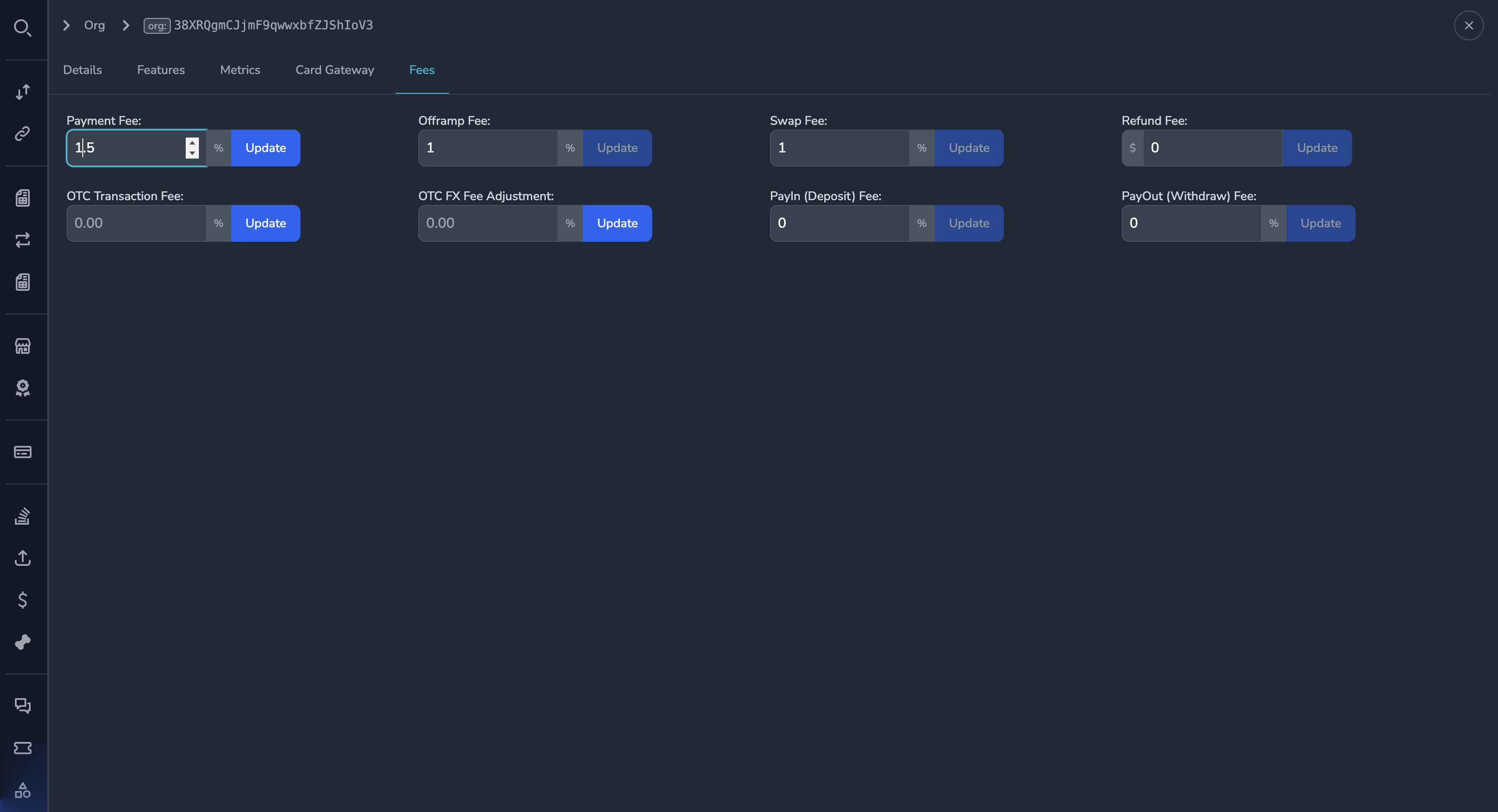
Fee Input Format
- Enter percentages as decimals (e.g.,
1.5for 1.5%) - Enter fixed amounts as numbers (e.g.,
5.00for $5.00 USD) - Leave blank or enter
0for no fee
Fee Calculations
Percentage Fees
Percentage fees are calculated on the transaction amount:
Fee = Transaction Amount × Fee Percentage

Example:
$100 payment × 1.5% = $1.50 fee
Net to merchant = $98.50
Fixed Fees
Fixed fees are charged as a flat amount:
Example:
Refund processed = $5.00 fee charged
Special Considerations
OTC Fees
OTC (over-the-counter) trading has two fee components:
- Transaction Fee — Applied to the trade amount
- FX Fee — Applied to currency conversion
Both fees may apply to a single trade.
Payin vs Payout Fees
- Payin Fee — Charged when the merchant receives funds
- Payout Fee — Charged when funds are sent to the merchant
These are default rates that may be overridden for specific accounts.
Audit Trail
All fee changes are logged:
- User who made the change
- Timestamp
- Previous fee values
- New fee values
View the audit trail in the merchant's History tab.
Permissions
| Role | View Fees | Edit Fees |
|---|---|---|
| Super Admin | Yes | Yes |
| Admin | Yes | Yes |
| Payment Ops | Yes | No |
| Compliance Ops | Yes | No |
| CS Ops | Yes | No |
| Finance Ops | Yes | Yes |
| View Only | Yes | No |
Best Practices
Before Changing Fees
- Verify you have authorization to change fees
- Check the merchant agreement for fee limits
- Consider the impact on the merchant
- Document the reason for the change
Fee Changes
- Fee changes typically apply to future transactions
- In-progress transactions use the fee at time of initiation
- Communicate significant changes to the merchant
Auditing
- Regularly review fee configurations for accuracy
- Verify fees match merchant agreements
- Investigate any unexpected fee patterns
Common Scenarios
New Merchant Setup
When onboarding a new merchant:
- Review the merchant's agreement for negotiated fees
- Enter the agreed fee percentages
- Verify all fee types are correctly set
Fee Negotiation
When a merchant negotiates new fees:
- Get approval documentation
- Update the fee configuration
- Note the effective date
- Confirm with the merchant
Fee Audit
To audit merchant fees:
- Export the fee configuration
- Compare to merchant agreement
- Identify any discrepancies
- Update as needed with documentation
Related Topics
- Merchant Profile — Merchant information
- Feature Flags — Enabled features
- Accounts & Metrics — Account information
- Settlements — Settlement transactions
Updated 7 months ago