
Accounts & Metrics
Viewing merchant sub-accounts and performance metrics
Accounts & Metrics
Merchants have sub-accounts for different purposes and can view performance metrics. This guide explains how to view and understand merchant accounts and metrics.
Understanding Accounts
Merchants may have multiple accounts for different purposes:
| Account Type | Purpose |
|---|---|
| Settlement Account | Receives settled funds from payments |
| Deposit Account | Receives customer deposits |
| Sub-accounts | Segregated accounts for specific use cases |
Viewing Accounts
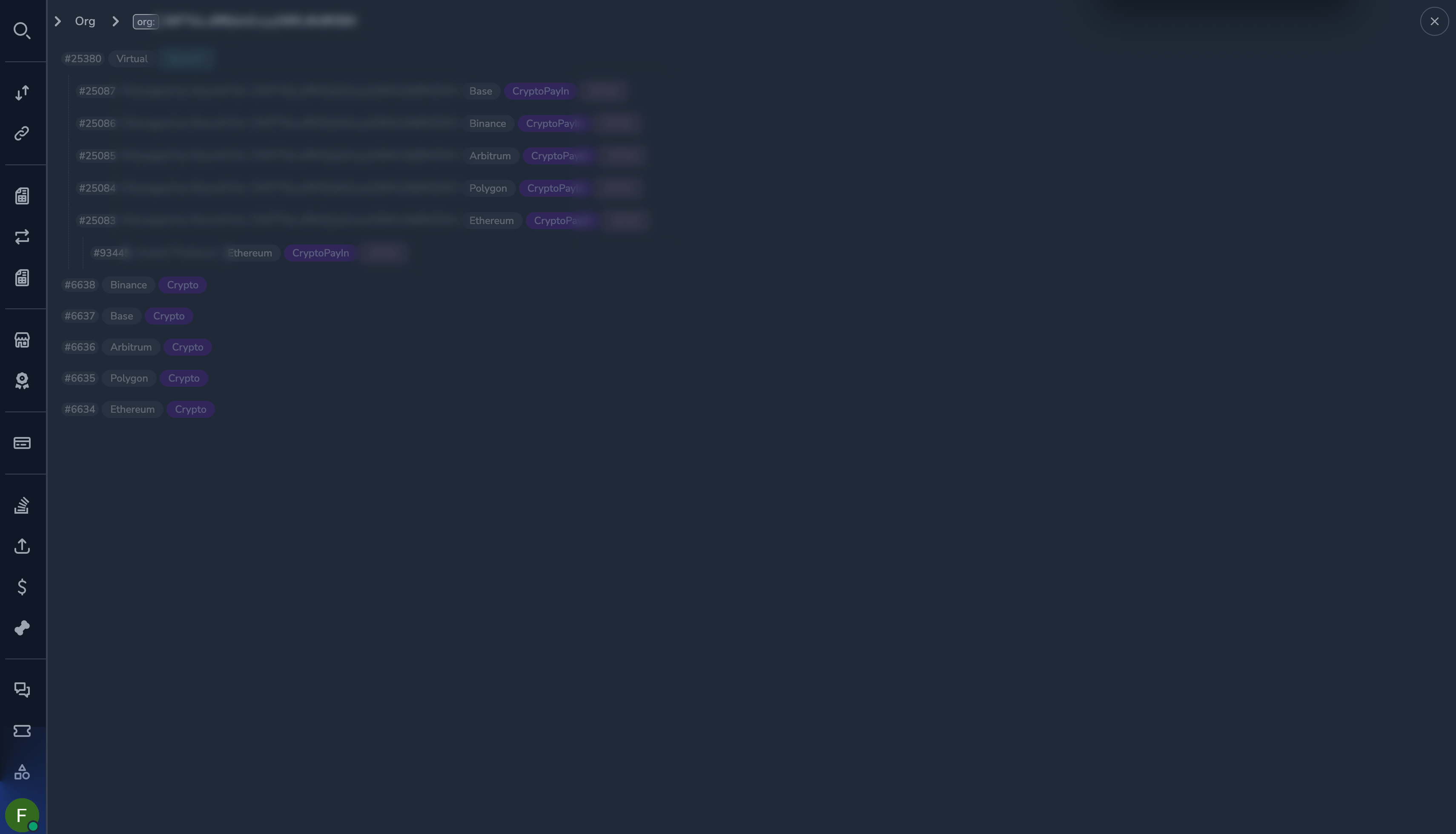
- Navigate to the merchant detail view
- Click the Accounts tab
- View all accounts associated with the merchant
Account Information
Each account displays:
| Field | Description |
|---|---|
| Account ID | Unique identifier |
| Type | Account type (settlement, deposit, etc.) |
| Address | Wallet address for the account |
| Network | Blockchain network |
| Currency | Associated currency |
| Status | Active or Inactive |
Settlement Accounts
Settlement accounts receive funds when payments are processed:
- Each merchant typically has one or more settlement accounts
- Different accounts may be used for different currencies or networks
- Funds are automatically settled to these accounts
Viewing Settlement Details
Click on a settlement account to see:
- Account configuration
- Recent settlements
- Associated transactions
Sub-Accounts
Sub-accounts allow merchants to segregate funds:
- Used for specific customers or use cases
- May have separate balances and reporting
- Linked to the main merchant account
Viewing Sub-Account Details
Click on a sub-account to see:
- Account reference and metadata
- Balance information
- Transaction history
Merchant Metrics
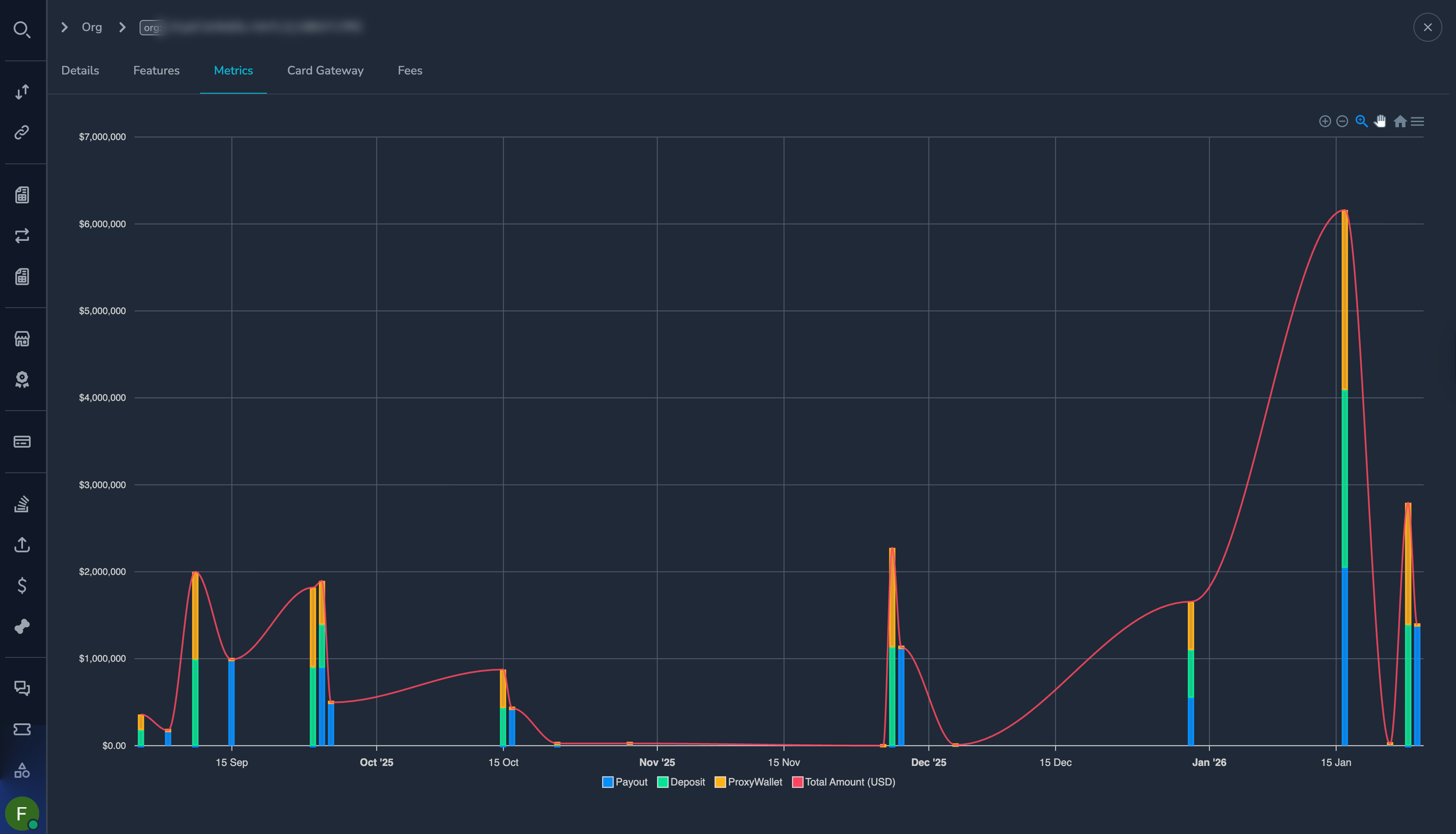
The Metrics section provides performance statistics:
Available Metrics
| Metric | Description |
|---|---|
| Payment Volume | Total value of payments over time |
| Payment Count | Number of payments processed |
| Success Rate | Percentage of successful payments |
| Average Payment | Average payment amount |
Time Periods
View metrics for different time periods:
- Today
- Last 7 days
- Last 30 days
- Custom range
Metrics by Payment Method
See how payments break down by method:
- Crypto payments
- Card payments
- Other methods
Volume Charts
Visual charts show:
- Daily payment volume trends
- Peak transaction periods
- Comparison to previous periods
Viewing Balances
To see current balances for a merchant's accounts:
- Note the account addresses from the Accounts tab
- Go to Balances in the Treasury section
- Filter by the account addresses or Organization ID
Common Tasks
Finding All Merchant Accounts
- Open the merchant detail view
- Go to the Accounts tab
- All associated accounts are listed
Checking Settlement Configuration
- Open the merchant's Accounts tab
- Review the settlement accounts
- Verify addresses and networks are correct
Reviewing Merchant Performance
- Open the merchant detail view
- Go to the Metrics tab
- Review volume, count, and success rates
- Identify any concerning trends
Permissions
| Role | View Accounts | View Metrics |
|---|---|---|
| Super Admin | Yes | Yes |
| Admin | Yes | Yes |
| Payment Ops | Yes | Yes |
| Compliance Ops | Yes | Yes |
| CS Ops | Yes | No |
| Finance Ops | Yes | Yes |
| View Only | Yes | Yes |
Best Practices
Regular Reviews
- Monitor merchant metrics regularly
- Look for unusual patterns in volume or success rates
- Investigate significant changes
Account Verification
- Periodically verify settlement addresses are correct
- Ensure the merchant has appropriate accounts for their currencies
- Check that accounts are active
Performance Issues
If metrics show concerning trends:
- Check payment success rates
- Look for common failure reasons
- Review recent changes to the merchant configuration
- Contact the merchant if external issues are suspected
Related Topics
- Merchant Profile — Merchant information
- Fee Configuration — Fee settings
- Balances — Account balances
- Settlements — Settlement transactions
Updated 7 months ago
Did this page help you?