
Balances
Viewing and understanding account balances
Balances
The Balances section provides visibility into all account balances across the platform. This guide explains how to view and understand balance information.
Accessing Balances
- Click Balances in the sidebar under the Ops section
- The balances list displays all accounts with their current balances
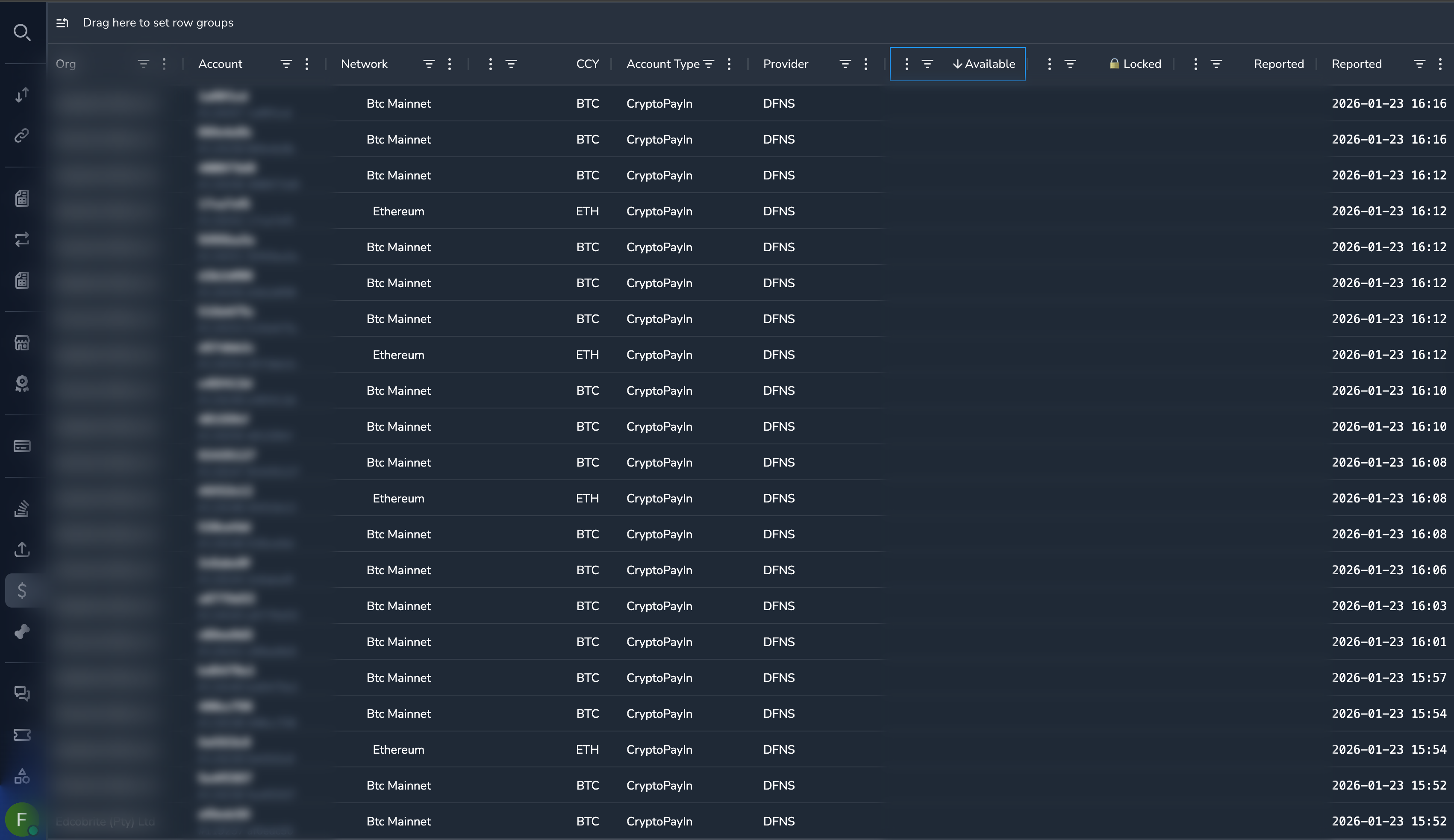
Understanding the Balances Grid
| Column | Description |
|---|---|
| Account | Account identifier |
| Organization | Merchant or organization owning the account |
| Currency | Currency/token for this balance |
| Network | Blockchain network |
| Ledger Balance | Internal accounting balance |
| On-Chain Balance | Actual blockchain balance |
| Locked Balance | Funds reserved for pending operations |
| Updated | Last balance update time |
Balance Types
Ledger Balance
The internal accounting balance that tracks:
- Incoming payments
- Outgoing settlements
- Fees and adjustments
- Expected balance based on transactions
On-Chain Balance
The actual balance on the blockchain:
- Verified from blockchain data
- May differ from ledger during processing
- Represents actual funds available
Locked Balance
Funds that are reserved:
- Pending settlements awaiting execution
- Funds in transit
- Reserved for specific operations
Available Balance
Calculated as: Ledger Balance - Locked Balance
This represents funds available for new operations.
Filtering Balances
By Organization
- Click the Organization filter dropdown at the top
- Select one or more organizations
- The list updates to show only their balances
By Currency
- Click the Currency column filter
- Select the currency (USDT, USDC, ETH, etc.)
- Click Apply
By Network
- Click the Network column filter
- Select the blockchain network
- Click Apply
Viewing Balance Details
Click on any balance row to see detailed information:
- Balance history
- Lock details
- Movement history
- Account information
See Balance Details for more information.
Balance Discrepancies
Sometimes ledger and on-chain balances may differ:
| Situation | Explanation |
|---|---|
| Ledger > On-Chain | Pending outgoing transaction not yet confirmed |
| On-Chain > Ledger | Incoming transaction not yet processed |
| Temporary difference | Normal during transaction processing |
| Persistent difference | May require investigation |
NoteSmall temporary discrepancies are normal during active processing. Persistent differences should be reported for investigation.
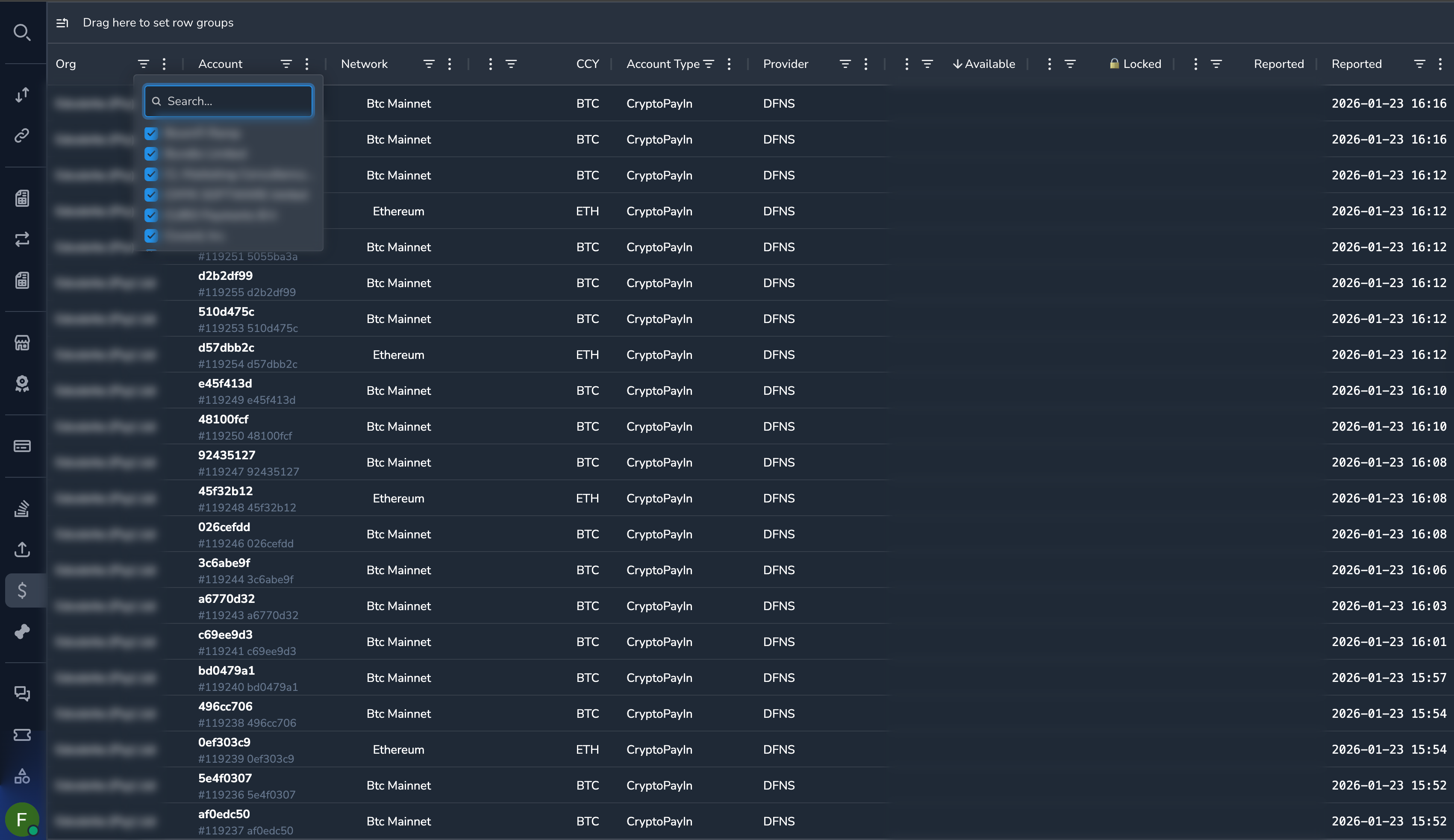
Organization Filter
The organization dropdown at the top allows quick filtering:
- Click the organization filter
- Search or select organizations
- Multiple organizations can be selected
- The entire view filters to selected organizations
Refreshing Data
Balances are updated regularly. To see the latest:
- Note the "Updated" timestamp for each balance
- Navigate away and return to refresh
- Use the refresh button if available
Common Tasks
Checking a Merchant's Balances
- Go to Balances
- Filter by the merchant's organization
- Review all balances for that merchant
Finding a Specific Account
- If you have the account address, use global search
- Or filter by organization and then look for the account
Identifying Low Balances
- Sort by Ledger Balance ascending
- Review accounts with low or zero balances
- Check if there are pending settlements or issues
Permissions
| Role | View Balances |
|---|---|
| Super Admin | Yes |
| Admin | Yes |
| Payment Ops | Yes |
| Compliance Ops | Yes |
| CS Ops | Yes |
| Finance Ops | Yes |
| View Only | Yes |
Related Topics
- Balance Details — Locks and movements
- Settlements — Settlement transactions
- Proxy Wallets — Wallet management