
Subscriptions
Viewing and managing recurring payment subscriptions
Subscriptions
Subscriptions represent ongoing billing relationships between customers and merchants. This guide explains how to view and understand subscriptions in the Support App.
What Are Subscriptions?
A subscription is an agreement where a customer pays a merchant on a recurring basis. Subscriptions:
- Link a customer to a billing plan
- Automatically generate invoices on a schedule
- Track the history of recurring payments
- Can be paused, canceled, or modified
Accessing Subscriptions
- Click Subscriptions in the sidebar under the Pay section
- The subscriptions list displays all subscriptions in the system
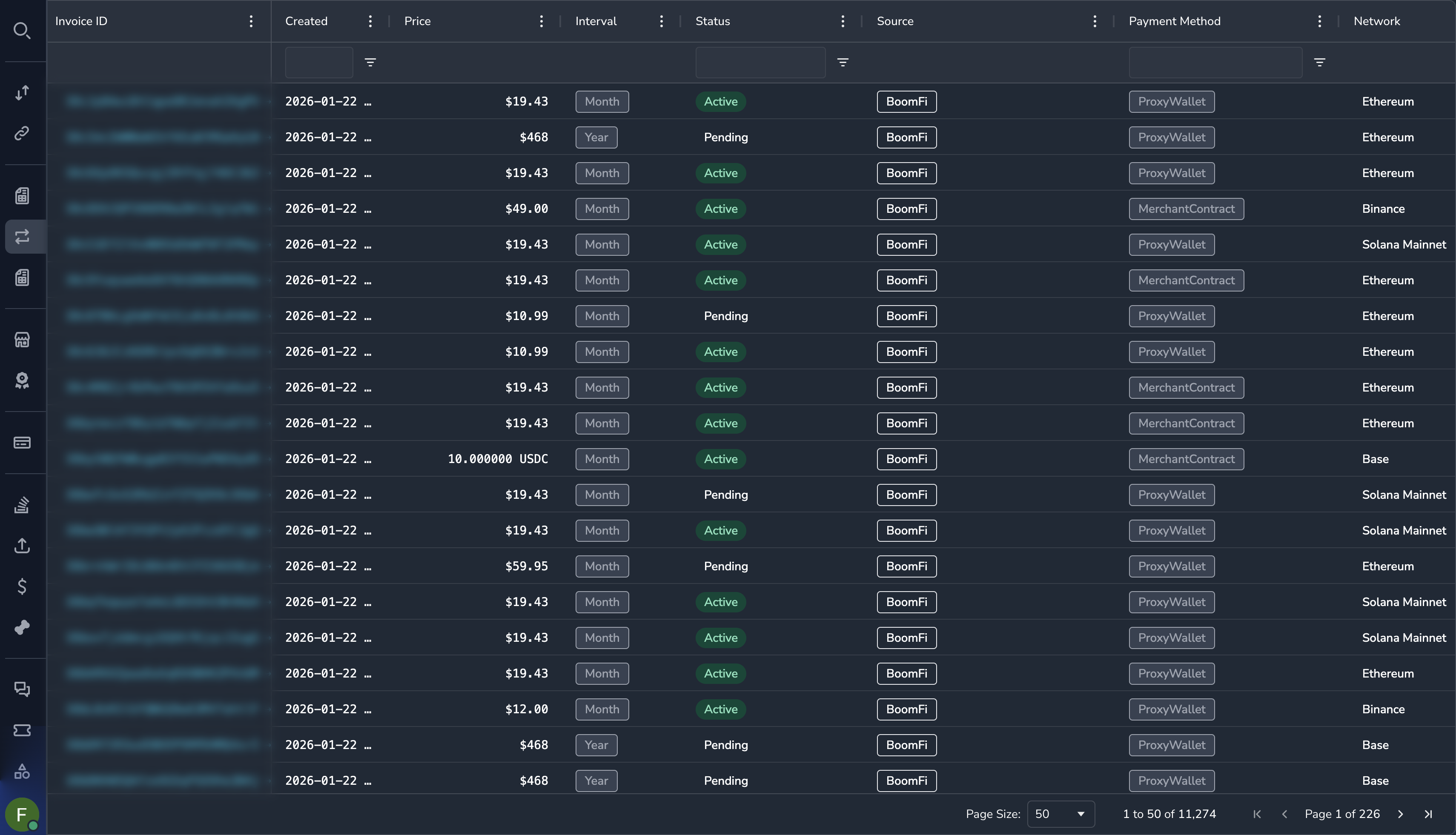
Understanding the Subscriptions Grid
| Column | Description |
|---|---|
| Subscription ID | Unique identifier |
| Customer | The subscribing customer |
| Merchant | The merchant receiving payments |
| Plan | The billing plan |
| Status | Current subscription status |
| Amount | Recurring payment amount |
| Frequency | Billing interval (monthly, yearly, etc.) |
| Next Bill Date | When the next invoice will be generated |
| Created | When the subscription started |
Subscription Statuses
| Status | Description |
|---|---|
| Active | Subscription is active and billing |
| Paused | Temporarily stopped, can be resumed |
| Canceled | Permanently ended |
| Past Due | Payment is overdue |
| Trial | In trial period |
Viewing Subscription Details
Click on any subscription to view complete details:
Subscription Information
| Field | Description |
|---|---|
| Subscription ID | Unique identifier |
| Status | Current status |
| Created Date | When subscription began |
| Start Date | When billing began |
| Current Period | Current billing period dates |
Customer Information
| Field | Description |
|---|---|
| Customer Name | Customer's name |
| Customer Email | Customer's email address |
| Customer ID | Link to customer profile |
Plan Information
| Field | Description |
|---|---|
| Plan Name | Name of the billing plan |
| Amount | Recurring amount |
| Currency | Payment currency |
| Frequency | Billing interval |
| Plan ID | Link to plan details |
Billing History
View all invoices generated for this subscription, including:
- Invoice dates
- Amounts
- Payment status
Filtering Subscriptions
By Status
- Click the Status column filter
- Select one or more statuses:
- Active
- Paused
- Canceled
- Past Due
- Trial
- Click Apply
By Merchant
- Click the Merchant column filter
- Select or search for a merchant
- Click Apply
By Customer
- Click the Customer column filter
- Enter the customer email
- Click Apply
By Date Range
- Click the Created column filter
- Select a date range
- Click Apply
Common Tasks
Finding a Customer's Subscriptions
- Go to the Subscriptions list
- Filter by customer email
- Review all subscriptions for that customer
Or:
- Go to the Customers section
- Find the customer
- View their subscription information
Checking Subscription Health
Look for subscriptions with these statuses that may need attention:
- Past Due — Payment has not been received
- Paused — May need follow-up with customer
Investigating Failed Payments
- Find the subscription
- View the billing history
- Click on the most recent invoice
- Check the associated payment status
Understanding Billing Cycles
Subscriptions bill based on their frequency:
| Frequency | Billing Interval |
|---|---|
| Monthly | Every month on the same date |
| Yearly | Every year on the same date |
| Weekly | Every week on the same day |
| Custom | Based on plan configuration |
The Next Bill Date shows when the next invoice will be generated.
Subscription Lifecycle
A typical subscription flows through these stages:
Created → Trial (optional) → Active → Canceled/Expired
                              ↓
                           Paused → Resumed → Active
                              ↓
                           Past Due → Active (if paid)
                                   → Canceled (if not paid)
Permissions
| Role | View Subscriptions |
|---|---|
| Super Admin | Yes |
| Admin | Yes |
| Payment Ops | Yes |
| Compliance Ops | Yes |
| CS Ops | Yes |
| Finance Ops | Yes |
| View Only | Yes |
Related Topics
Updated 7 months ago
Did this page help you?